Clara Science Academy · Greensboro, NC · K–8
What will your child discover next?
A K–8 school where curiosity is the curriculum’s starting point. Students observe, ask, test, and explain—in small classes that know every learner by name.




Field notes, entry no. 1
How learning happens here
Every class at CSA follows the same path real scientists do. Scroll through a student’s notebook.

 Observe
-
01 · Observe
It starts with paying attention
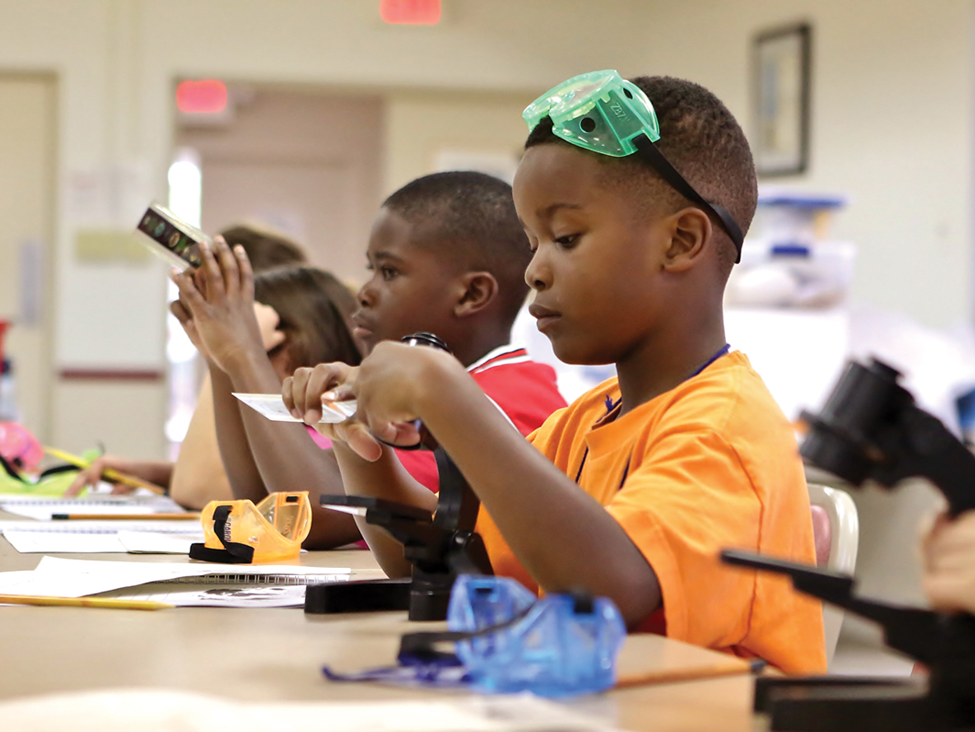
Students look closely—through microscopes, at data, at the world outside the window. Scientific inquiry is how every subject begins at Clara Science Academy.
-
02 · Question
Then they ask “why?”
Critical thinking is taught on purpose. Class sizes stay human-scale, so every student’s question gets heard and followed up.
-
03 · Experiment
Hands on, goggles down
Labs, builds, and projects turn ideas into something students can test—and sometimes watch bubble over.
-
04 · Conclude
And explain what they found
Students record results, share them, and defend their reasoning. We believe every student can achieve greatness with the right tools, guidance, and environment.
The elements of a CSA education
Periodic table of programs
A balanced K–8 course of study. Hover or tap an element to see what’s inside.
Specimens collected this year
A look inside the lab

Grades under one roof
On campus
- Modern classrooms
- Science laboratories
- Technology centers
Margin notes from the people in charge
Voices from the lab
Leading Clara Science Academy with a vision for educational excellence and innovation—committed to the best learning environment for every student.
As Director, I ensure every student receives the highest quality education. Our management system helps us stay personal at scale.
Technology is the backbone of modern education. Our platform keeps operations seamless for the whole CSA community.
For enrolled families
Stay in the loop, every day
The CSA family portal puts grades, attendance, and messages from teachers in one secure place.
- Grades
- Attendance
- Messages
Hypothesis: your child will love it here
Your next experiment: come see for yourself
The best way to test it is in person. Reach out to schedule a visit, ask about enrollment, or just say hello.
Greensboro, NC 27405
Contact Clara Science Academy
Get In Touch
3015 East Bessemer Ave.
Greensboro, NC 27405
1-800-567-5110
www.clarascienceacademy.com
Office Hours
8:00 AM - 3:30 PM
8:00 AM - 12:00 PM
Closed
Leadership Team
Board of Directors
Director
IT Department Head
Quick Actions
System Updates
Latest improvements and enhancements · Last updated October 15, 2026
Latest System Updates – October 15, 2026
v 2.555.2: Quizzes and tests support optional hints and a letter-scale option that sets the D/pass line to the class average after close. The newest changes are at the bottom of the first list below.
Recent updates – September 25 to October 15, 2026
- When creating or editing a quiz, choose Quiz or Test.
- Tests require students to turn on their camera and share their entire screen before starting, with a clear monitoring notice.
- Leaving the tab, clicking outside the window, reloading, or stopping sharing auto-submits and locks the test.
- Teachers can review screen and camera images, mouse activity, and a timeline, then unlock a student for one retake.
- Timed quizzes now auto-submit correctly when time runs out.
- Students are no longer signed out for inactivity while taking a quiz or test, so long quizzes submit without losing answers.
- Student Jobs: Friday is now split into 1st, 2nd, 3rd and 4th Friday so cleaning teams can rotate Fridays.
- Student assistants get a redesigned attendance screen with colored status buttons, live counts and a sticky Save bar; the console Attendance button is fixed.
- Grades pending now sits right above the version badge and also lists past-due assignments with no grades entered and no submissions (paper hand-ins).
- Fixed the page freezing on first visit: the updates pop-up no longer gets stuck behind its dark background, so no refresh is needed.
- Redo dashboard: select several pending requests and grant or reject them all at once; View opens a pop-up with the description, attached document and the student's current grade.
- Deleting an assignment or class no longer fails with a database error when a student took it as a lockdown test.
- Grades pending now counts every student with no grade entered once an assignment is past due, even if the rest of the class is graded.
- Quiz retakes now always count the student's highest attempt on the grading page, gradebook, statistics and student class averages.
- A saved 0 now counts as graded on the grading page, and Grades pending updates right after you save.
- Quiz retakes: low grades, recent grades, trends, GPA and gradebooks all use the best attempt, even if the quiz was edited between attempts.
- "Select all that apply" questions give partial credit: each right choice earns a share and each wrong choice cancels one out.
- New quiz review option: show all answers after submitting, show only the questions students got right once the quiz closes, or show nothing. Editing a quiz keeps students' saved answers.
- Reopen on the assignment page now works like approving a redo request: choose an "Open until" date and how many new quiz attempts each student gets.
- My assignments: students can search and use More filters (type, submission, redo/extension, quarter, grade range) and sort by due date, class, title or grade.
- New printable student redo report on the Redos & Reopening page: pick a student and print every redo request, redo and open reopening, or only pending and open items.
- Students: Download CSV now exports only the students your filters show (grade level, account status, academic alert, search), in the same order.
- Bulk void is back: open a class in Assignments & Grades and click Bulk void to void several assignments for all or selected students at once.
- Grades pending now refreshes right after you void or unvoid an assignment, instead of up to 5 minutes later.
- Tests no longer lock by accident: clicking Chrome's "sharing your screen" bar or a notification shows a 10-second countdown instead of locking, the sidebar and Back button are disabled during a test, and reloading or closing asks first. Switching to another tab or app still locks the test.
- Clara Science is now an app: install it from Install app in the sidebar or Settings (or your browser menu; on iPhone use Safari → Share → Add to Home Screen), and turn on push notifications in Settings for new assignments, grades, messages and announcements.
- Security and privacy update: stronger protection for every form and sign-in (repeated failed sign-ins now pause for a few minutes), uploaded files are only available when signed in, and new Privacy Policy and Terms of Use pages are linked in the footer and app Settings. If a page has been open a long time and a save says the page is out of date, reload and try again.
- The public site now lists one mailing address (3015 East Bessemer Ave.) and office hours, and the Contact box opens your email or phone instead of a form. Pop-ups close with Escape and keep keyboard focus inside, and some hard-to-read text is darker.
- Redo dashboard: the action buttons sit in a roomier two-by-two grid, and quiz redo requests show how many times the student has taken the quiz (in the list and in the View pop-up).
- Redo dashboard shows only live work: reopenings close when their window ends, graded redos leave the active list, and a redo that passes its deadline with nothing turned in is revoked. That student can't request another one until they talk to you. A new Recently closed section lists the last 30 days and why each item ended. Voiding an assignment for everyone or one student also voids their pending extension and redo requests, and the grading page shows a notice on students with an extension.
- Pending grades: School Administrators now get the alert only for classes they are assigned to (none assigned, no alert); Directors still see every class. Each assignment in the pop-up has a Dismiss button that hides it until a new submission or ungraded student shows up, and Show again brings dismissed ones back.
- Split classes: a School Administrator can set the days each group in a class meets on the class's Manage groups page. Take attendance, the student assistant page, All present and the CSV template then list only the groups meeting that day (plus anyone not in a scheduled group); the others get no record because their other class covers them. Show everyone is there when needed, and the attendance hubs say No meeting when no group meets.
- The assistant proposals page (approve or reject assignments from a student assistant) uses the portal's themed cards and buttons again, and the attendance check-in tablet now follows the site theme, including dark and seasonal themes.
- K-3 take one daily roll instead of attendance every class period: the teacher opens Take daily roll from the attendance hub, marks Present, Late, Absent or Excused, and that roll is the student's school-day attendance. Those classes no longer appear in class-period attendance, and the 4 PM pass no longer marks a K-3 student absent just because no roll was taken. School Administrators choose which grades use the daily roll on the Class Period tab of the attendance page.
- New grade workspace for teachers who teach every subject in a grade (from My classes or the daily roll card): today's roll, New assignment with a subject picker, a combined gradebook with each student's average per subject, what still needs grading, and standards links.
- Changing a student's first name, last initial or birth date (on the edit page or by CSV) now rebuilds their school email and renames their Google account, which keeps the old address as an alias. If Google refuses, the old email stays and the save message explains why.
- Student assistants can now help in any number of classes; each class can still have up to two assistants.
- Timed quizzes and tests now show a large countdown pinned to the top of the page (amber at 10 minutes, red at 5, reminders at 10, 5 and 1 minute) and submit automatically at 0:00. The clock runs from when the student starts, so reloading no longer restarts it; anything submitted after the deadline is graded on the answers saved by then and flagged on the submissions page.
- Proctor control for lockdown tests: check “Proctor must begin the test” and students wait on a “Waiting on proctor to begin” screen with monitoring on. Click Begin in the proctor console (from the assignment page) and everyone starts together with the full time; late joiners start right away with full time. The console also adds time for a student, opens recordings, and ends the test for everyone. Leaving the waiting room uses no attempt.
- Equation sheets: add LaTeX equations to a quiz or test with symbol buttons, a live preview, Algebra/Geometry/Physics/Chemistry starter sets and your own reusable bank. Students open them with the Equations button while they work (noted in test recordings), and questions and answer choices can include math.
- The administrator class overview, groups and notes pages now show one “All classes” button instead of two.
- “Shuffle questions and answer choices” now gives each student their own order of questions (within each section) and multiple-choice answers. The order stays the same on reload and changes on a retake.
- Settings has a Theme effects switch that turns off falling snow, leaves, petals and the drifting corner decorations. It is saved to your account, so it applies on every device.
- Google Classroom: a brief Google outage no longer creates a second copy of a class’s Classroom, classes sharing one Classroom keep every section’s students, linked electives sync their roster, and Sync names any student Google would not accept. Students whose portal email is an old alias of their Google account are now matched correctly.
- Quizzes and tests: every question has a Listen button that reads the question and answer choices out loud (math is read in words), with a slower speed option. It works during proctored tests too.
- Quiz and test Insights: from Submissions, see the most-missed questions, the answer-choice split, scores by skill, and what each student should work on. Print a class report or a report for each student.
- Quiz questions have an optional Skill / topic tag (with suggestions). It is used by Insights and is kept in question banks and CSV imports.
- Paper tests: print a test booklet and bubble answer sheets for a quiz or test, then scan or photograph the finished sheets to read the answers and grade them automatically after you review them.
- When maintenance starts, every user is emailed (from donotrespond@) with the reason and when the portal should be back.
- Every date and time now shows in Eastern (school) time: quiz open times, maintenance end, due dates, extensions, and redo deadlines (which end at 11:59 PM Eastern).
- Quizzes in test mode are now labeled Test everywhere, for staff and students.
- New Online Practice assignment type for Khan Academy, IXL and similar sites: students get an Open in (site) button and turn in proof; graded like PDF/Paper, with redos.
- Online Practice turn-ins are PNG screenshots only, and image turn-ins now show on the teacher's submission and grading cards instead of downloading.
- Discussion Submissions now show each student's attached files (picture thumbnails and download buttons) under their threads and replies.
- Student assistants taking attendance for a split class now see only the groups meeting that day, with each group's meeting days and a group tag per student.
- Editing a discussion or quiz now shows an Update button instead of Create or Publish.
- Grade 4 and up: students marked Present or Late in class who never checked in on the attendance tablet lose 5 percentage points on assignments due that day; the grading card shows a 'No tablet check-in' notice.
- Student assistant Take Attendance shows one card per group: groups meeting that day are open, and groups not meeting are greyed out and collapsed (open one if a student came anyway).
- Fixed broken pages and dead links: leaving a message group, old student pages, assistant alerts, student profile links, Redo 'Grade' buttons and the Group assignments view.
- Attendance numbers now match: Late shows as Tardy for parents and students, report cards count only the selected quarter, earlier-day fixes update school attendance, tablet check-ins are kept, and calendar holidays are no-school days.
- Tighter access: a parent signed in as their child can't do assistant work or quizzes and tests, deleting report cards needs generate permission, and Administration staff can open Calendar, Settings and Bug reports.
- Students and parents now see why points changed on a grade: late penalty, missed tablet check-in, late redo or extra credit.
- The class page Avg score is capped per grade, so a mistyped score can't push a class average past 100%.
- Student and teacher calendars now show assignment due dates (click to open); students see turned-in work greyed out.
- The student assignments date filter now uses school time, so late-evening due dates stay on the right day.
- New Notifications inbox in the sidebar for every role, with an unread badge, All/Unread filters and mark-all-read.
- New student profile page for admins: classes and averages, attendance, report cards, family, Family Portal and device in one place.
- Teacher student grades and attendance reports now link to each other.
- New teacher Gradebook tab: students by assignments with click-to-edit scores, averages, CSV export and print.
- Tech can schedule maintenance ahead of time; everyone gets donotrespond@ emails when it's scheduled, 1 hour before, when it starts and when it's finished.
- New Updates tab in Tech System to email the latest release notes to everyone.
- Fixed the home page update notes opening behind the top bar (version badge, then Latest changes).
- Student Jobs team passes: finish a week at 100+ points to earn a pass (up to 3 a month). Each member can use one to void an assignment or get +30% extra credit, with teacher approval.
- Student Jobs inspections now show the right weekly trend and each inspection's point change.
- Class redo policy in the Syllabus window: turn redo requests on or off, only allow them for grades at or below a set %, limit requests per quarter, and add a note for students.
- The Gradebook now has buttons to switch back to the Grades and Assignments views.
- Class notes: click a folder to open its subfolders; clearer expand arrow and a short tip for students.
- Quizzes and tests: optional per-question hints (CSV supported). Using a hint keeps 90% of that question's points on a quiz, or 80% on a test.
- Quiz letter scale option: keep the fixed scale, or set the D/pass line to the class average after the quiz closes (or a proctor Ends the test).
- Online and paper quizzes now share one grader, and answers that don't belong to a question are ignored.
- School-day attendance is now filled in at 4 PM instead of when students sign in: Present if marked Present or Late in any class period; Unexcused Absence if absent in every class period (Excused if every period is excused); with no class-period attendance, Present only if they checked in on the tablet. K-2 use class periods only. Office entries are never changed, and later class-period fixes update the school-day status within about 10 minutes.
- New attendance check-in tablet: students in 3rd grade and up type the first letters of their name, tap it, and are marked Present in School-day attendance right away. A wrong tap can be undone on the tablet within 2 minutes; after that, the office makes changes. The tablet never marks tardies or changes a status the office already set. Setting the tablet's new password on its first sign-in now saves correctly.
- New app icon: the Clara Science Academy atom in green over a darker green book on a soft spring-green background, so it is no longer cut off on phones (on iPhone, remove and re-add the app to see it). On the public website, the About Us and CSA Info menus open fully again instead of hiding behind the page.
- The browser tab and installed app now use the Clara Science Academy logo without the white square behind it (reinstall the app to see it right away). The sidebar scrollbar now matches your theme instead of showing a white background.
- Pop-ups no longer hide behind the sidebar: Void, Bulk void, Delete, Syllabus, Analytics, Extensions, Redo, Announcements and other pop-ups open fully on top of the sidebar and corner cards, and the student assignment details pop-up keeps its title, points and status visible on short screens.
- Test mode camera exemptions: students without a camera can ask for an exemption for one test from My assignments or the test start screen. The class teacher or an administrator approves or denies it from the quiz's Submissions page, and can also grant one in person. Exempt students still share their screen and the test stays locked down.
- Sharper test screen recording: clearer, higher-resolution screen captures every 3 seconds (unchanged screens are skipped), plus extra captures on clicks, answer changes, question changes and violations. The review player adds playback at up to 8x, a mouse trail, event markers you can jump to, and full screen.
- Transcripts now list only final grades with a Mid-year column, no teacher names, the correct grade for each year, and "Expected grade" for former students. Report cards use the same teal style as transcripts.
- The Report Cards tab is now called Academic Records, and management Home has a new "Send announcement" quick action that opens the announcement composer with class selection.
- K-8 transcripts are live under Report Cards → Transcripts: preview every school year's final grades, attendance and cumulative GPA, add the PASecureID, and issue official or unofficial PDFs. Official copies need Director approval and can then be shared with families in the new Family Portal Transcripts tab. Report cards now show the PASecureID instead of the SSN.
- Announcements rebuilt: a step-by-step composer (class, grade, all students, all staff, or everyone), optional parent copies, scheduling, end dates, editing and deleting. Each announcement is emailed from the no-reply address to the matching Google Group (class lists, new grade 3-8 lists, Student Assembly, Teachers), and parents and staff see announcements on their home pages.
- Family Portal: parents can see each child's portal username and password (show, copy, or reset), and use "Sign in as child" to open the student portal when a student forgets their login. A banner shows who is signed in, and everything done that way is logged under the parent.
- Clicking Proposals on a class in Assignments & Grades now opens that class's pending student assistant proposals for administrators instead of returning to the home page.
- New login page to match the home page, and animated seasonal themes: snow falls on Snowy, leaves drift on Autumn, petals on Spring and Cherry, fireflies on Summer and Forest, plus bubbles, stars, rain and aurora ribbons. Turn effects off any time under Settings → Animated theme effects.
- The public home page has a brand-new design: an interactive night-lab hero, a scroll-through story of how students learn, a periodic table of programs, a photo gallery, and an easy way to plan a visit. This updates window now opens automatically only for signed-in users.
- Students: quizzes set to test mode now say Test on the Assignments tab, and extended assignments show the Extension badge with the original due date crossed out next to the new one.
- Extensions granted from an assignment's Extensions button now appear under Approved on the Extensions page, and any pending request from that student is approved automatically.
- Extensions, Reopen and Restore on the assignment page work for teachers; group extensions no longer show an error after saving.
- Restoring a voided quiz brings back all of a student's attempt grades, so the best attempt counts again.
Student Create thread – September 24, 2026
- The Create thread window is now wide, with large title and post boxes.
- The Text / Code switch, language picker, and line-numbered code box display correctly for students.
Discussion Code paste – September 23, 2026
- Create / reply / edit: Text or Code mode with language select and line numbers for pasting snippets.
- Rendering & settings: Code posts display correctly for students and graders; “allow students to create threads” is saved and enforced.
Theme reveal scene – September 23, 2026
- Save intro: Saving a theme plays a ~3.5s full-screen scene with its name, meaning, and motif — use Skip anytime.
- Preview flash: Selecting a theme shows a quick flash so you see what it represents before saving.
Theme atmosphere – September 22, 2026
- Motifs & motion: Seasonal and color themes show light corner icons that drift slowly; Default and Light use a soft wash only.
- Safe by design: CSS-only (no particles), never blocks clicks, and respects reduced-motion preferences.
Student Jobs weekly scores – September 22, 2026
- Weekly carry-forward: Teams still reset to 100 on Monday; each new inspection this week starts from the current weekly score, not a fresh 100.
- Inspection preview: The conduct-inspection form shows the running baseline so the live score matches what will be saved.
Staff work numbers – September 20, 2026
- Work number on staff profiles: Add Staff and Edit Staff include an optional Work number separate from Personal phone.
- Student privacy: Class teacher info for students shows only the work number — never the personal phone on file.
Quiz window & scores – September 18, 2026
- Extend due date: Moving a quiz due date later also updates the close date when needed, so students are not locked out after a class-wide extension.
- Same official score: Student assignment cards show the best quiz attempt (matching staff), and closed quizzes still offer View results.
Quiz averages & attendance – September 16, 2026
- Open-ended quiz grading: Manual points save to the selected attempt’s answers and grade row — not a mix of older auto scores that made the on-file “best” look like an average.
- Quiz retakes: Class averages, quarter grades, GPA, and grade lists use the best attempt only — earlier tries no longer stack into the average.
- Period vs school day: Taking class-period attendance no longer auto-creates school-day Unexcused Absences for unmarked students.
Themes – September 14, 2026
- Four new themes: Coral, Sapphire, Honey, and Slate are available in Settings for students, parents, teachers, and staff.
- Dark theme removed: Dark is no longer a choice. Accounts that had it selected, and a site-wide Dark override, are reset to Default.
Login letter layout – September 14, 2026
- School logo: Family Portal login letters open with the Clara Science Academy logo.
- Student cards: Classes are listed as chips. A student who does not fit at the bottom of the page moves to the next page instead of splitting mid-row.
Login letter for School Admins – September 14, 2026
- Actions column on Family Portal: School Administrators see Generate letter on each parent row, even when the account role is stored as School Admin or another alias.
Family Portal login letter – September 14, 2026
- Generate letter: Each parent account on Family Portal has a Generate letter action. The PDF lists the portal address, username, linked students, and the grades, attendance, classes, and released report cards they can see.
- Temporary password on the letter: If the parent still has a temporary password, a new one is printed. If they already chose their own, you confirm before resetting it. Cancel prints the letter without a password.
Redo dashboard & assignment print – September 14, 2026
- View from the redo dashboard: Each request, reopening, and redo opportunity has a View action that opens the assignment.
- Print assignment documents: On assignment view, Print sits next to Download for uploaded PDFs and images.
- Print a student’s worksheets together: Select several redo rows (or all of one student’s worksheets) and print the attached documents in one packet.
Quiz grading status & assignment popup – September 12, 2026
- Pending vs Graded on quiz cards: Open-ended quiz Submissions show Pending or Graded on each student card, plus a Pending filter for work still waiting on you.
- Long filenames stay put: On View Assignment, long material file names truncate instead of stretching the modal sideways.
Drive uploads & feedback files – September 12, 2026
- From Google Drive: Document uploads across the portal (assignments, student submissions, Class Notes, syllabus, and more) can pull from Drive. Connect Google in Settings first; files are copied into the portal.
- Feedback attachments: When grading PDF/paper work, attach documents with your written feedback. Students download them next to teacher feedback on Assignments.
Pending grades, retakes & Admin+ – September 12, 2026
- Pending grades by type: Fully auto quizzes are never pending. Open-ended quizzes and discussions only appear when teacher action is needed. Missing quiz/discussion work past the student’s effective due is auto-zeroed (extensions and live redos honored).
- Retake starts blank: Retake from Assignments opens a fresh attempt immediately. Results include View previous attempts when review is allowed, with clearer Back / Retake buttons.
- Answers per attempt: New quiz submissions store answers with that attempt so students and teachers can review earlier tries (legacy attempts may remain score-only).
- School Admin+ school-wide redos: Directors and School Administrators (including dual-role teacher accounts) see all redo and extension requests across the school.
Quiz submissions – September 11, 2026
- Select attempt to review: When a student has multiple quiz attempts, choose which attempt’s auto score to focus on. The score bar matches that attempt.
- Official grade stays clear: “Official grade on file (best)” is shown separately from the attempt you are viewing. Answers load for attempts that have stored responses.
Quiz redo & pending grades – September 10, 2026
- Stuck Approved without access: Older quiz redos that stayed labeled Approved after a revoke (or a broken grant) now flip to Redo revoked so the student can request again.
- Revoked redos reopen request: After a teacher revokes an approved redo, students see Redo revoked and can request another redo.
- Review previous attempts: When approving a quiz redo, choose whether the student can review prior answers while the redo is active.
- Choose quiz attempts: Set how many additional attempts to give (1–20). The quiz reopens through the selected deadline with those retries.
- Pending grades show type: The Grades pending popup labels Quiz, Discussion, PDF / Paper, or Group on each row.
- Students see granted quizzes as open: Approved quiz redos move out of Past & closed so students can Retake until the deadline or attempts are used.
Edit assignment – September 9, 2026
- Original dates load correctly: Due/open/close now show the real school-local times. Opening Edit and saving without changes no longer shifts dates.
- Quiz & Discussion Edit: Edit opens the full quiz or discussion editor (questions, prompt, settings) instead of the limited PDF-style popup.
Redo access – September 9, 2026
- Approved redos reopen for students: Quizzes (and other reopen grants) no longer stay stuck under Past & closed after approval. Students get the retake/submit action while the redo window is open.
- Smarter grant defaults: If the original due/close date is still upcoming, Grant redo prefills that date. PDF/paper re-grants reopen closed work through the deadline.
- Close date follows due: When creating PDF, quiz, discussion, or group PDF assignments, Close date autofills from Due until you change Close yourself.
Student quizzes – September 9, 2026
- Answers save if you leave early: With Save and continue on, answers autosave while working, flush when the tab closes or hides, and stay available overnight while the quiz is still open (no more 30-minute wipe).
Redo dashboard – September 9, 2026
- Assignment type column: Pending requests, reopenings, and redo opportunities show Quiz, Discussion, or PDF / Paper.
- Grant reopens through the deadline: Granting a redo opens access through the end of the selected date. Quizzes get an extra attempt; discussions and PDF/paper unlock for posting or resubmit.
Pending grades – September 8, 2026
- Alert for ungraded submissions: Teachers and admins get a toast and review panel for submitted work that still needs a score. Assignments & Grades hubs show a Pending grades count (your classes as a teacher; school-wide for admins).
Student quizzes – September 8, 2026
- Take quiz until you submit: Quizzes you have not started no longer say Retake with attempts left. Retake appears only after a submission when tries remain.
Quiz authoring – September 8, 2026
- Multiple select (select all): Quiz questions can now allow more than one correct option. Students use checkboxes; grading requires an exact match.
Assignments & Grades – September 8, 2026
- Homework vs In-class labels: Grades view has a Context column, and Assignments view cards show whether each assignment is Homework or In-class.
Redo dashboard – September 4, 2026
- Graded reopenings leave Active reopenings: Students who never turned work in, asked for a redo, and were reopened no longer stay stuck at “0 attempts” after you grade them. Paper reopenings show — for attempts when quiz attempts do not apply.
- Final stays blank until re-graded: On Active redo opportunities, Final shows — until you save a new grade for the redo — it no longer copies the original score.
Student redo requests – September 3, 2026
- Past-due assignments accept redo requests: Request Redo used to fail if the assignment still said Active in the database even after it was past due or closed on the student list. It now follows the same past/closed rules as the Assignments tab (including quizzes with no attempts left).
Tech Devices – Repair cards – September 3, 2026
- Click a card to open details: Tickets on the active bench open the popup when you click them. Ticket ID copy and status still work on their own controls.
- Computer, student, and date visible: Cards were getting squashed so that info was cut off. They now show ticket ID, computer, assigned student, and opened date clearly.
- Collapse pending students: On Devices → Inventory, the Students pending a device list can be collapsed (preference is remembered).
Tech Devices – Repair desk – September 3, 2026
-
Student ticket IDs: Each repair gets a code like
RT-0042you can copy and hand to the student. Search accepts the ticket ID too. - Active bench vs closed archive: Open / In progress / Ready stay on the bench; closed tickets are separate so they do not mix into live work.
- Lighter card layout: Compact cards and a detail panel replace the old wide mixed table.
Tech Devices – Repair tickets – September 3, 2026
- Resolution notes save correctly: Notes load into the field, save on blur or with Save notes, and work for any ticket status.
- Narrower title + View: The title column stays compact; View opens full ticket details (description, notes, asset, student, dates).
- Created by shows names: Repair tickets show the creator’s first and last name instead of username.
Grading & Student assistant – September 3, 2026
- Score presets match the point total: The 100 / 90 / 80 / 70 / 0 buttons on paper grading used absolute points (so a 50-point assignment still offered 100). Presets and assistant letter buttons now scale to the assignment total.
- Assistant individual grading cards: Entering grades as a student assistant is no longer a plain table. Each student has a card with A–D, scaled presets, score bar, and feedback.
- Assistant console and hub: Clearer section labels and denser assignment rows on the multi-class console and class workspace.
Attendance & Class Notes – September 2, 2026
-
Drive Sync column: Sync failed because Postgres was missing
converted_drive_file_id. Sync now adds that column automatically. - Class Notes loads after linking Drive: Counting linked Drive files used the wrong column name and crashed the notes page with a 500. That count is fixed.
- Drive API must be enabled: Linking a Class Notes folder after reconnecting Google failed because Google Drive API was off on the Cloud project. The error now says that instead of blaming folder sharing.
- Reconnect Google works with Google’s allowed return URL: Settings → Reconnect used a callback Google had not registered, so access was blocked. Connecting now uses the same return URL as Sign in with Google.
- Reconnect Google for Class Notes: An expired Drive token still looked connected in Settings, so linking a folder failed. Expired tokens are cleared, Class Notes has a Reconnect button, and Settings lets you reconnect even while linked.
- Class period filters: Filter by teacher, grade, subject, completion status, or search on the Class Period attendance tab. Stats update for the filtered list.
- Drive files open as Docs/Slides: Linking a folder no longer times out the server. Word and PowerPoint open in Google Docs or Slides in the browser so students do not need Microsoft Office.
Redo scores – September 2, 2026
- Original and Final use the assignment’s point total: The redo dashboard treated every score as a percent out of 100. Assignments worth 20 or 50 points now show points out of that total (and the correct percent), and average improvement uses percentage points.
Student assignments – September 2, 2026
- Closed work is not “Completed” without a grade: Past or closed assignments on the student Assignments tab were labeled Completed even when no score was entered. They now say Past due / Closed — not graded until a real grade exists.
Assignments & Classroom – September 2, 2026
- Void for specific students: Choosing Specific students from Assignments & Grades or the grades view said “No enrolled students” even when the class had a roster. The void dialog now loads the enrolled list for that class.
- Google Classroom roster: Students rostered on the site but missing a saved school email on their account were skipped by Classroom sync. Sync now fills that email from the school naming pattern and adds them to the class Classroom and Google Group.
Syllabus & Drive – September 2, 2026
- Syllabus PDF upload works again: Uploading a syllabus failed with “No module named PyPDF2” because the PDF libraries were commented out of the server requirements. They are installed again, and the outline reader tries pdfplumber, then pypdf.
- Drive folder linking: Class Notes said Google was not connected even when Settings showed it was. Drive now reloads the saved connection (and can use the class teacher’s token), widens the encrypted token column that was truncating some saved tokens, and tells you clearly when you still need Settings → Connect Google — signing in with Google alone is not enough.
Attendance Fix – August 31, 2026
- Class period attendance shows Present again: Marking students present saved correctly, but reopening the class period page showed nobody selected and counted them under Absent, because the page sent the status back in a different form than the buttons it draws. Saved attendance now highlights the right button and the Present, Late and Absent totals match what was recorded. Nothing already saved was lost — only the display was wrong.
Bell Schedule Fix – August 31, 2026
- Period labels fill in when empty: A period can have a default name like “Electives” and still take classes. On days a class is assigned, the class shows; on days that period is empty, the label appears instead. You no longer have to clear the label before dragging a class in.
- One class, several periods: The planner only allowed a class in one period, so dropping it somewhere new pulled it out of the period it already had. Classes now stay in the list and can be dropped into as many periods as you need — drag again and pick the days. Only the days the class is still free are preselected, claiming a day moves it off the other period, and the × on a card removes just that placement.
- Saving periods keeps assigned classes: Editing the bell schedule failed with a database error, and each save rebuilt every period from scratch, which would have dropped the classes assigned to them. Periods are now updated in place — unrelated edits leave assignments alone, and removing a weekday trims affected classes to the days that remain.
Cleaning Duties & Areas – August 31, 2026
- Lunch turn checks: The team that cleans also serves lunch, so each team now tracks whose turn has been used. Click a name on the team card, or the check box in the Members panel, to tick a student off, and the card shows how many of the team have served. Checks cover the current week only and clear on Monday like the team score, with a Clear checks button if a rotation restarts early. Students see the same ticks on their Jobs page.
- Working days and team editing: Creating a team now asks which weekdays it works, and every team card has an Edit button for renaming it, changing its type or description, and adjusting those days later. The days appear on the team card and on the student Jobs page.
- Assign duties to a team: Every team now has an editable duty list — a name, the area it covers, and what has to be done. Use Duties on a team card to add, edit, or remove them, then pick a duty for each student in the Members panel. The duties that were previously fixed in code were carried over automatically, and students see their own duty highlighted.
- Students can see their areas: The student Jobs page opens with What you have to clean — their own duty with the full instructions inspectors grade against, and the rest of the team’s areas one tap away. Team cards list their areas as well.
- Stairway added: The stairway is now an area on every cleaning team and part of the normal inspection, with a new “Stairway not swept or cleaned” deduction worth 10 points.
- Lunch Hall scored separately: Lunch Hall has its own checklist worth 20 points per item — tables wiped and cleared, no trash on the floor, no dishes left out, all food and condiments put up, and trash taken out. Run it with the Lunch Hall button on a team, and inspection history shows which checklist was used.
Student Jobs – August 31, 2026
- Completely rebuilt page: Team cards now show the current score, whether it went up or down, the average, pass rate, and a mini chart of recent inspections. Teams and inspection history are separate tabs with search and filters, and there is a new scoring guide.
- Better inspection form: Each deduction and bonus is written in plain English with its point value, and the final score updates as you tick items.
- No more browser popups: Every confirm, prompt, and alert box was replaced with in-app dialogs, and results appear as toasts.
- Student view rebuilt to match: Students see the same design and their own team is highlighted and listed first.
Fixes – August 31, 2026
- Announcements for School Administrators: An "Unauthorized" message appeared above the title box. Announcement permission checks now recognise every way the role is stored, including as a secondary role.
- Class mailing list for teachers: The class page shows the Google Group address with a copy button so you can email the whole class.
- Google Group moves on grade change: Promoting a student left them in their old school-level group. Grade changes now move students between the elementary, middle school, and high school groups.
- Google Classroom roster gaps: Students enrolled without a school email were silently left off the Classroom roster. They are now named in the logs and in the roster repair tool, and failed adds are reported instead of ignored.
Schedule – August 31, 2026
- Say what a period is used for: A class period can be labelled, for example Period 7 as "Electives". The label appears on student, teacher, and printed schedules instead of a blank slot, and the period no longer accepts classes.
Fix – August 28, 2026
- Student Jobs loads again: The inspection archiving update tried to add a database column in a form the live database rejected, which broke the Student Jobs page. The update now runs correctly and the page works again.
Classes – August 28, 2026
- One Art/Music class per grade: Art and Music were two separate classes for every grade. They are now a single Art/Music class, matching the report card. Rosters, assignments, grades, and attendance were merged into the combined class, and core class setup creates only the one going forward.
Redos & Inspections – August 28, 2026
- Graded redos close out: Grading a redo never updated the redo record, so it stayed “Pending” with no final grade. Grading now records the redo score and final grade (keeping the higher of the original and the redo). Redos you already graded show their grade again automatically.
- Archive or delete inspections: Student Jobs inspections can be archived so they stop counting toward the team score and leave the history, or deleted permanently.
- Inspection details popup: Viewing an inspection opened a plain browser alert box. It now opens an in-app panel with the score, every deduction and bonus, and the inspector notes.
Grade Colors – August 28, 2026
- Colors match the grade: Score cards on the grading page, the corner letter badge on the assignments tab, and the grade in the view popup were always green no matter the score. They now follow the grade: A green, B blue, C amber, D orange, F red.
Google Drive in Class Notes – August 28, 2026
- Link a Drive folder: Paste a shared Google Drive folder link on a class Notes page. Subfolders and files mirror into Class Notes and refresh automatically.
- Students download without Drive access: Files stream through the portal using the same class permission checks. Google Docs and Slides download as PDF; Sheets as Excel.
- Sync now, Unlink, reconnect: The Drive panel shows the last sync time, and a banner points you to reconnect if Google access expires.
Bell Schedule & PDFs – August 27, 2026
- Student & teacher Schedule: Color Mon–Fri period grid with Download PDF; classes fill periods by meeting-time overlap.
- Simpler weekly periods: One set of bell periods for the whole week. When assigning a class, pick which weekdays (Mon–Fri) it meets in that period.
- Management Schedule tab: Edit school-wide or per-grade bell periods (days, times, colors) and print master schedules by grade level. Color pickers stay within the row.
Student Assistant & Teacher Portal – August 27, 2026
- Student assistant console: Restored hub/console templates removed during the SPA cutover so assistants can open class workspaces again (attendance, grading, proposals).
- Teacher home fix: Restored the missing Student import so the teacher dashboard home API loads class and roster summary stats again.
Assignments – August 26, 2026
- File picker fix: Choosing files via the file explorer on PDF/paper create and edit now attaches them the same way Class Notes does (drag-and-drop already worked).
- Edit popup parity: Open/close dates, category weight, extra credit, and late penalty match what you set at create; dates display in school time.
Assignments & Class Notes – August 25, 2026
- Edit assignment documents: Add or remove PDFs and other files from the edit popup; files save with the assignment.
- Create PDF attachments: Selected files attach when you create the assignment, with clear errors for rejected types.
- Class Notes nesting & bulk upload: Folders nest up to three levels (Unit → Lesson → materials); upload multiple files at once.
Timezone & Academic Concerns – August 25, 2026
- School timezone: Attendance, dashboards, schedules, and calendar “today” use Eastern school time so evening records match the sidebar clock.
- Q1 GPA gate: Roster GPA and academic-concerns alerts wait until official Q1 grades are released; staff see a note when year GPA is still locked.
Tech Users & Devices – August 25, 2026
- Laptop color: Add/edit laptops with Black, Silver, or Black Carbon. Tablets skip color. Inventory and CSV import support the field for laptops only.
- Archived students filtered: Graduated/withdrawn/removed students no longer show in grading, attendance, groups, assistants, and related class tools.
- Assistants (active year): Each student may assist at most two classes in the active school year; closed-year history does not count.
- Assignment create redirect: After creating an assignment, staff return to Assignments (not Home); PDF create file dropzone is clearer.
- Former students & staff: Tech User Management lists graduated/withdrawn students and inactive staff even when their portal login was removed.
- Parents category: Parent accounts are no longer mixed into Staff (current); they have their own section.
- Unassigned devices & pending students: Inventory can hold stock without a student, shows who still needs a device, and the CSV template/upload supports blank student columns.
- Active-year class pickers: Collaborate conflict/journal options and assignment create forms (including PDF multi-class) only list classes from the current school year.
- Repair tickets: Hardware/Software categories under Tech → Devices with status tracking.
Impact: Tech can manage people and device stock more accurately without leaving the tech portal.
Earlier August 25 Hotfixes
- Password change, alerts, rosters, Classroom: Forced password-change dialog, academic alert refresh after grading, departed students off teacher attendance, and Google Classroom sync on grade change.
Phone, Grading & Grade Changes – August 24, 2026
- Phone sidebar drawer: On phones the menu starts closed. Open it with the menu button; it closes when you navigate or tap outside so pages use the full screen.
- Grade change remaps all classes: Editing a student’s grade moves grade-banded classes (including Art / PE / Music). Google Groups refresh after the save so old-grade groups are cleared.
- Archive student job teams: Past cleaning / duty teams can be archived from Student Jobs; inspection history stays on record.
- Grading save fixes: Teacher group grades save on the correct URL, Save all no longer clears blank rows, zero scores stick, and school-year lockouts return a clear error.
Impact: Phones are usable again in the portal, teachers can save grades reliably, and mid-year grade edits keep classes and Google Groups in sync.
Kindergarten & 2nd Grade Report Cards – August 8, 2026
- Kindergarten & 2nd grade PDFs: Official and unofficial progress reports for K and 2nd grade, with standards that print on the PDF.
- Standards checklists: Report Cards quick actions and class tools include Kindergarten and 2nd grade standards entry (including Homeroom skills, habits, and writing for K).
- 2nd grade page layout: The student/school header appears on page 1 only so Language Arts and Math standards can use the full page. Unofficial copies show a large greyed UNOFFICIAL stamp on continuation pages.
- PDF header polish: Larger Clara logo, Entrance Year label, Kindergarten shown as K, and unofficial stamp clipped to the logo area.
Impact: Elementary report cards now cover K–3 with matching standards workflows for teachers and administrators.
Middle School Exit & Reports – July 30, 2026
- Instant promote / graduate / withdraw: Students bulk actions apply immediately by default. Check “Stage as end-of-year intent only” when you want the choice saved for year finalize instead.
- Middle-school year-end outcomes: Before year finalize, stage 8th graders to promote to 9th (default), graduate as alumni (off roster, keep records), withdraw as former, or repeat. Controls are on the Students page and the closure dashboard.
- Closed-year grade from class names: When a class has no grade band saved (common for older classes like “Math [4th]”), report cards now read the grade from the class name so a single mis-tagged class does not pull a student into the wrong grade.
- Report card grades by school year: Closed-year report cards use the grade from that year’s classes (not a year-offset guess). Regenerating a PDF for 2025–2026 no longer prints one grade too low when 2026–2027 is active.
-
Auto sign-out when idle: After 30 minutes without activity you are signed out. A short warning appears before logout; move the mouse or press a key to stay signed in. (Configurable via
IDLE_SESSION_TIMEOUT_MINUTES.) - Report card PDF fix (grade 3): Generating PDFs for grade-3 progress reports no longer fails with the include_attendance template error.
- Class roster by grade band: When adding students to a class, only students in that class’s grade level(s) appear in the picker.
- School-managed Google Classroom: Clara creates Classrooms for the school, adds teachers and students directly (no invite to accept), and deletes those Classrooms when a class is removed or a school year is finalized.
- School Admins on the teacher picker: School Administrators can be assigned as class teachers when creating or editing a class.
- Closed-year teacher names on report cards: Archived / closed-year classes keep the teacher of record. Year close freezes teacher names so removing a staff login does not rewrite report cards to “Unassigned Teacher.”
Impact: 8th graders can graduate or withdraw cleanly at year end instead of always becoming 9th. Report cards show the correct grade for each school year.
React SPA Portals & Report Cards – July 26, 2026
-
Portal shells on React: Management, teacher, student, parent, and tech dashboards continue under
/app/…with soft redirects from legacy URLs. -
Student quiz & discussion deep links: Opening take-quiz or discussion from bookmarks now lands in the SPA (use
?legacy=1for the old pages). -
Quiz & discussion editing: Create/edit flows with
?edit=open the SPA authoring forms for both management and teachers. - Permission-only Administration staff: Staff with management permissions (not only Director / School Administrator) can use the React management shell; nav stays filtered by permission.
- Teacher student grades & attendance reports: Native SPA report pages replace iframe wrappers; printable and PDF links remain available.
- Report cards hub: High school (9–12) is marked under development (transcripts, not quarterly cards). New Transcripts section for K–8 is also under development.
- Corner toasts: Login and flash feedback appear as fading corner notifications (bottom-right). Academic concerns keep their persistent bottom-right alert.
- Parent portal logins & year-end closure: Guardians can receive their own welcome credentials; overdue school-year finalize no longer auto-runs on every dashboard open (avoids worker timeouts).
Impact: Staff and families spend more time in the modern SPA. Deep links and edits no longer drop into leftover Jinja pages. Report-card workstreams are clearer for elementary/middle vs high school.
Family Portal, Sidebar & Staff Tools – June 12, 2026
- Family Portal dashboard: Richer parent home with student spotlight, action tiles, grade badges, attendance ring, and an upgraded Management → Family Portal hub for staff.
- Sidebar school clock: Live time in the school timezone appears in every dashboard sidebar, with zone badge and IANA name. Colors follow the active theme.
- Sidebar theme polish: Collapse bar and logout footer now match all 20 themes (including Ocean). Parent sidebars show the guardian’s name with a small Family Portal subtitle.
- Staff roster tab: School Administrators with merged or secondary roles can open the Roster view under Teachers & Staff again (current vs former employees).
- Google Workspace staff sync: Inactive or removed staff no longer get new school emails. Departed accounts move to Terminated & Removed and suspend instead. Staff admin OU uses singular Administrator (not Administrators).
- Class Google Groups: Each class can have an auto-provisioned group for roster email; membership syncs with enrollments and year-end cleanup respects protected groups.
- Security & login: Hardened headers, safer redirects, upload checks, and improved login monitoring. Repeated failed sign-ins alert Tech; password changes block reuse of recent passwords.
Impact: Families and staff get a more polished portal experience. Google Directory stays aligned with who should actually have accounts. Leadership tools work reliably for merged admin logins.
Sign-In Page, Family Portal & Report Cards – June 10, 2026
- Sign-in page redesign: The login screen now matches the public home and Family Portal look (teal + amber, school logo, role hints for Students / Families / Teachers / Staff). Families see a short Family Portal note, flash messages display inline, and the current portal version appears in the card footer.
-
Family Portal for parents: New Parent role with a dedicated dashboard at
/parent/dashboard. Parents see a child picker (all linked students), insight tiles (GPA, classes, attendance), and quick links for Grades, Attendance, Classes, Report Cards, and Settings. - Parent account provisioning: School staff create parent logins from student records (Family portal access on the student edit screen) or bulk-provision from Management → Family Portal. One parent email can be linked to multiple children in the same family.
- Director-approved report cards: Official report cards are not visible to parents until the Director opens the report card detail page and clicks Approve for parents. The Family Portal Report Cards tab then lists approved cards with a Download PDF button. Unapproved and unofficial copies stay hidden from families.
- Management visibility: Report card detail, student history, and the Report Cards hub show Published / Awaiting Director approval status. Directors see a count of cards waiting for parent release.
- Parent themes: Parents can choose from the same 20 portal themes (Default, Light, Dark, seasonal, and color palettes) under Settings → Appearance. The choice saves instantly and applies across the site while logged in.
-
Google Workspace — Parents OU: Prepare a top-level
/Parentsorganizational unit in Google Admin for future parent account sync. Student and staff OU lifecycle rules (Alumni, Transferred & Removed, Terminated & Removed) were also refined in this release.
Impact: Families can follow school progress in one place without seeing draft report cards. Directors keep final say on what goes home. Staff provision logins from existing parent contact fields and hand off credentials securely (automatic parent welcome email is planned for a follow-up).
Create Assignment, Grades & Report Cards – June 2, 2026
- Create assignment carousel: Choosing PDF/Paper, Quiz, Discussion, or Group assignment is now a horizontal card carousel with matching side previews and animated transitions — no more scrolling through stacked cards. Tips for each type stay visible below the carousel.
- Assignments & Grades — quarter column: Class grades tables and assignment cards now show which quarter each assignment belongs to. Column headers in the grades view are centered for easier scanning.
- Report card PDFs: Opening a saved report card PDF no longer shows N/A for quarters and comments when the data exists. Saved snapshots merge with live grades when needed, and class lookups work whether IDs were stored as numbers or text.
- Report cards — Recent list: Each new generation adds a row under Recent on category student cards (with date), so directors can find and reopen the latest PDF without hunting through old records only.
- Bulk void improvements: Teachers and admins can void grades for many students at once with a clearer stepped modal, search, select-all, and archived-enrollment badges. Rosters include students from closed years when active enrollments are empty (common right after year-end closure).
Impact: Faster assignment setup, clearer grading context by quarter, trustworthy report card PDFs, and bulk void that works through closure without empty student lists.
Closed-Year Dashboards, Class Filters & Calendar Closure – May 29, 2026
- No misleading stats when the year is closed: Management, teacher, and student home pages now show a clear “School year closed” notice and hide live GPA, assignment, and enrollment tiles until a new active year exists. Academic concerns alerts are suppressed when there is no active school year.
- Classes tab — school-year filters: Filter by school year (required), subject, and status. Class cards stay hidden until a year is selected so you never see all historical classes mixed together. Summary tiles update to match the filtered set only.
- Assignments & Grades — matching filters: Same school-year / subject / status filter bar on the class-picker view. Insight counts (classes, assignments, enrollments, teachers) reflect only visible classes. Pick a closed year to review that year’s classes without stale totals from every year at once.
- Create class modal redesign: Wider stepped layout. Grade levels are tap-to-toggle chips (Select all / Clear). Substitute and additional teachers use searchable checkbox lists — no Ctrl/Cmd multi-select. Shows which active school year the class will belong to.
- End-of-year closure on Calendar: The phased closure scheduler and dashboard links moved from Report Cards to School Calendar (End-of-year closure button). Closure workflow back-links return to Calendar instead of Report Cards.
Impact: After closing a year, staff see an honest empty/read-only experience instead of last year’s numbers pretending to be current. Browsing classes and assignments by year is deliberate, and scheduling year-end closure lives next to the calendar tools you already use.
Phased School-Year-End Workflow – May 25, 2026
- Phased closure (replaces "Close school year"): Directors now schedule a closure date. The system runs a four-phase timeline automatically — Day 0 notifies students (in-app + email), Day 7 locks student submissions, Day 21 locks teacher grading, Day 28 auto-generates Q1–Q4 report cards, archives classes, promotes students one grade, and deactivates the year. No more sudden lockouts — everyone gets a clear window to wrap up.
- Real-time closure dashboard: Live phase timeline with countdowns to each milestone, a pre-finalization checklist (classes with missing Q4 grades, students still pending), recent audit events, and one-click actions to pause, resume, postpone, advance, finalize now, or cancel a closure.
- Fail-safe extensions: Grant a deadline extension per student, per teacher, per class, or per year, with optional reason and a custom expiration date. Extensions bypass the lockout for exactly the people who need it — without unlocking the whole year.
- Hybrid archive for students & teachers: Once a window closes, classes from that year disappear from the active "My Classes" list but remain accessible under a new Previous years section, with grades still viewable by year.
- Restart-the-clock safety net: If a closure was scheduled with a past end date, milestones now anchor to today (never silently fast-forward), and Directors can "Restart clock" from the dashboard to reset the schedule from today forward without cancelling the closure.
-
Report card auto-generation provenance: Year-end report cards generated by the system are now flagged with
is_auto_generatedand the actor that fired the run, so admins can tell at a glance which records came from the auto-finalize step vs. a manual run.
Impact: The end of the school year is no longer a single risky button — it's a four-week, fully-audited workflow that handles the predictable cases automatically and gives Directors precise tools to handle the human ones.
Start-Next-Year Affordance & School Years Workspace – May 25, 2026
- Smarter next-year date suggestions: Once a closure finalizes, the dashboard offers a "Start the next school year" panel. Suggested dates now add one calendar year to the closed year's start/end — preserving each school's typical first and last day pattern — instead of landing on the day after the end date (which is the start of summer break). Directors can still override either date.
-
School Years workspace redesign (
/management/school-years): New hub-aesthetic page with an active-year spotlight, insight tiles (total years, periods configured, year length), live-filter table of every year past and present, side-by-side Quarter/Semester cards with per-period editing, and themed modals for adding, editing, and viewing each year. - "Manage School Years" entrypoint in the Calendar tab: The School Calendar has a prominent gradient CTA + button linking directly to the School Years workspace. End-of-year closure is also scheduled from Calendar (see May 29 update above).
-
Robust auto-generated academic periods: Quarter dates are now computed by dividing the total year days into four roughly-equal slices (Q4 absorbs any remainder), so years that start in any month produce sensible Q1–Q4 ranges and the
ValueError: month must be in 1..12bug is gone.
Impact: Starting the new school year is now a one-form flow with smart defaults, and the School Years management page is finally a first-class workspace instead of a buried settings screen.
Report Card Form Redesign & 3rd-Grade Standards – May 25, 2026
- Report Card generation form — full redesign: Brand-new hub-aesthetic form with a hero, grouped sections, sticky footer with the submit actions, no more double scrollbars or grey gap at the bottom, and the academic concerns popup now appears reliably on every step of the report-card flow.
- Report Cards category page redesign: Elementary / Middle / High School category pages now show a hero, insight tiles, searchable / sortable student cards with collapsible recent-reports lists, and clean empty states.
- 3rd-grade report card — exact spec from the director: Page 1 fits everything from the provided design on a single page; pages 2 & 3 are the Math and Language Arts standards checklists with quarter boxes sized to stay inside the page, larger description text, and a header repeated on every page.
- 3rd-grade attendance auto-fill: When "Include attendance" is checked, excused / unexcused absence boxes are filled in for every quarter — including zeros — so a complete card always looks complete.
- 3rd-grade standards checklist (new feature): New database model + dedicated teacher editor at Teacher → 3rd Grade Standards (also linked from each class's Class Management section). Per-student view, sticky section headers, dirty-state tracking, completeness percentage, and search — so the checklist is real data, not free-form notes, and feeds the report card automatically.
Impact: The report-card workflow now matches the rest of the management hub aesthetic, and the 3rd-grade workflow finally has a system of record for standards instead of relying on grades alone.
Academic Concerns Popup & Reliability Fixes – May 25, 2026
- Academic Concerns popup — correct role scoping: School Admin+ only see students with overall GPA < 2.00; teachers only see students with GPA < 2.00 in their own classes. Class names listed under each student now match the assignments needing attention.
- Collapsible student cards with spacing: Each student card in the full concerns modal collapses individually with clear breathing room between cards.
- 30-minute snooze: Dismissing the corner toast snoozes it for ~30 minutes (persisted in browser storage), then it reappears as a fresh reminder — and any underlying change to the at-risk list pops it sooner.
- Reliable visibility & dismissal: Fixed the popup getting stuck off-screen behind layered CSS animations and a bug where the "X" button silently failed inside the redesigned report-card form. Bootstrap's modal/toast lifecycle is now respected end-to-end.
Impact: Academic-risk alerts are accurate to each user's scope, appear consistently across every page, and can be dismissed (and reliably re-appear) without fighting the UI.
Management Home, Enrollment Forms & Attendance – May 15, 2026
- Management home (School Administrators & Directors): Redesigned dashboard with a clearer hero, role badges, at-a-glance stats, quick actions, and recent activity—built for day-to-day leadership workflows.
- Add student form: Sectioned card layout, photo upload with live preview, and improved spacing—same fields as before, easier to complete.
- Add staff form: Matching modern layout with file upload zones, organized sections (employment, emergency contact, permissions), and a cleaner action bar for add/update.
- Student & staff profile modals: Fixed a bug where viewing a student from the management dashboard left a grey overlay after closing; modals now reuse a single instance and clean up backdrops correctly.
- Attendance → Reports: Compact redesign with date presets (Today, 7 / 30 / 90 days), collapsible filters, horizontal summary chips, scrollable table, and pagination (50 per page). Filters update in place without reloading the whole attendance page. Defaults to the last 30 days instead of loading every record.
- Attendance analytics: New layout with daily volume chart, status breakdown, at-risk student table with search, risk-level filters, CSV export, and in-place date range updates. Quick report links from attendance now open the right date ranges.
- Class Period cards: The Pending / Completed badge no longer overlaps long class names; titles wrap cleanly beside the status badge.
- Report cards (withdrawn students): Generation supports withdrawn students with class lists tied to school year and quarters; enrollment windows ensure only eligible classes appear, with matching server-side validation when saving.
Impact: Leadership has a clearer home base and smoother enrollment workflows; attendance reporting is faster to scan and filter; analytics highlights students who may need follow-up; and everyday UI bugs (modals, class cards) are resolved.
Class Rosters, View Class, Photos & Report Cards – May 9, 2026
- Manage class roster: Select enrolled students by clicking the whole card (no separate checkbox column). Removing a student from the roster no longer uses a blocking browser confirm dialog. Soft-deleted students are hidden from rosters where they should not appear.
- Void assignments: Card-based void experience with cleaner controls (native radios hidden where the flow was refactored) so voiding feels consistent with the rest of Assignments & Grades.
- View class (teachers & admins): Course information uses more comfortable spacing. The class mailing list shows the label on one line and the list address on the next for easier reading.
- View class — less clutter: Recent assignments and recent attendance summary blocks were removed so the class overview stays focused on what you need day to day.
- Teacher class layout: Recent announcements stay in the main column with height aligned to the class info row; enrolled students sit beside class management for a clearer two-column layout.
- Student & staff photos: Upload a photo when adding a student or staff member; change it when editing. Leadership can update photos from dashboard modals (multipart save with CSRF). Images persist on the student and teacher/staff records used across the app.
- Report cards & withdrawn students: Generation supports searching and selecting withdrawn students where appropriate, with class lists driven by school year and quarters. Enrollment windows (academic periods) are used so only eligible classes appear, and saving a report card record enforces the same rules on the server.
Impact: Rosters and voiding are faster and calmer to use, class pages read more cleanly, staff can keep directory-style photos current, and report cards respect real enrollment history—including students who have left mid-year when policy allows.
Quiz Reliability, Builder UX & Voiding Accuracy – May 6, 2026
- Quiz retakes now show the best score: When a quiz allows multiple attempts, the student-facing quiz grade and quiz details now display the highest attempt (instead of accidentally showing an older attempt).
- Quiz sessions stay active during a quiz: While a student is on a quiz page, the system sends a lightweight keep-alive so they don’t get auto-logged out mid-quiz.
- Quiz creation — autosaved drafts: Quiz builders are now auto-saved as drafts in the background. If you refresh or get logged out, your work is preserved unless the draft is deleted. Drafts remain inactive until you publish.
- Quiz builder — sections in Live Preview + collapsible sections: Section headers now appear in the live preview, and teachers can collapse completed sections to avoid scrolling through 60+ questions.
- Quiz creation now includes gradebook settings: Quiz assignments support the same key options as PDF/Paper assignments, including category, category weight (unweighted/weighted behavior), and extra credit.
- Voided assignment accuracy in views: Assignment overview statistics now exclude students who have the assignment voided, and class grades views display fully-voided assignments correctly (instead of showing “Not Graded”).
Impact: Quizzes are more reliable for students, teachers can build large quizzes faster with less scrolling, and grade/overview statistics are more accurate when voiding is used.
Assignments & Grades, Redo Dashboard & Academic Alerts – May 4, 2026
-
Assignments & Grades — default Grades view: When you open a class, the page now lands on Grades view first (assignment list with due dates, submissions, graded counts, class average, and quick actions). The view toggle order is Grades → Assignments → Table. Choosing a class from the class picker opens with
view=grades. - Grades view design: The by-assignment table uses a violet header card, sticky column headers, zebra rows, date and stat pills, tiered average badges, and compact action buttons (View / Grade / Class) with clearer icons.
-
Table view — student filter: In the student-by-assignment matrix, use Filter students to narrow rows by name, student ID, or grade level. Shareable URLs support
student_q=…; switching views keeps that query; Clear removes it from the address bar. The matrix card uses sticky name and average columns, improved spacing, and a teal-themed header consistent with the rest of the tool. - Redo & reopen: For PDF/paper-style work, use Redo / reopen from View Assignment (quick actions) to grant opportunities or reopen submissions; the dedicated grading screen no longer duplicates that control. The Redo dashboard respects each teacher’s classes (primary, co-teacher, substitute), includes Active reopenings and pending student requests in search/filter, and uses past-deadline wording where appropriate.
- Redo dashboard design: Warm hero header, stat tiles, a unified filter strip (class, status, student search), and color-coded sections for pending requests, active reopenings, and active redo opportunities — plus an updated Grant redo modal.
-
Roster & voiding fix: Group roster and void flows now use the correct
group_idon group membership and group grades (fixing errors when updating rosters or voiding group assignment grades). - Teacher navigation: Sidebar highlights Assignments & Grades and Students where it matters, with a clearer active state across grading, extensions, redo, and related flows.
- Academic Concerns for merged accounts: The corner Academic Alert and full concerns modal now load for users whose School Administrator or Director role (or teacher-type role) appears in secondary roles while the primary login role is something else — for example Tech + School Administrator. Alerts use the same school-wide or class scope as before once eligibility is detected.
Impact: Teachers and admins reach grading-oriented views faster, can scan large classes in table view, manage redo and reopening in one place, and see academic-risk alerts reliably no matter how staff roles are split between primary and secondary fields.
Google Workspace, Staff Portal & Class Email Lists – May 1, 2026
- Directory as single source of truth: A service account with domain-wide delegation can create Workspace users, move them between OUs, and sync Google Group membership from the database—so Admin Console stays aligned with the website roster.
-
Student OUs (including cohorts): Active students live under /Students/Elementary, Middle School, or High School (or /Students/Alumni/Middle for grades 9–12 until high school launches). Students who complete a division and leave over the summer go to /Students/Alumni/{Elementary|Middle|High} (1-year grace before Google deactivation). Mid-year or early departures go to /Students/Transferred & Removed (immediate deactivation). Staff offboarding uses /Staff/Terminated & Removed (immediate). Graduation cohorts are not Google Groups (
Class of YYYY@); use school-level lists,studentassembly@, or per-class groups for mail. -
School-wide student groups: Each eligible active student is kept in exactly one level group (
elementary@,middle_school@, orhighschool@) plusstudentassembly@. Grade K–2 records follow the existing policy (no Workspace email until third grade). -
Per-class Google Groups: Each class can have a stable list address such as
class-12-2526@clarascienceacademy.org(internal class id plus a four-digit school-year key from the active year) and a human-readable group name matching the class title. Membership includes enrolled students (with school email) plus primary, additional, and substitute teachers. The current primary teacher is the group owner; when the primary changes, sync promotes the new primary before demoting the former one so someone always has owner rights. -
Staff OUs and
teachers@: Staff accounts are placed under /Staff (including paths for inactive or removed staff where policy applies). While a staff member is in an active OU, sync keeps them inteachers@so faculty-wide email lists stay accurate. - Portal login vs directory-only: When adding or editing staff, leadership can turn website portal login on or off. If portal login is off, the person can still get a Google account and appear in the directory for email and Classroom, but they do not sign in to this website. The role dashboard reflects that distinction.
- Welcome email to personal address: New staff can receive credentials at their personal email (no-reply sender). The message clearly separates website username and temporary portal password from Google / school email sign-in and labels the Workspace address as official school email (not generic “Workspace” jargon).
- Multiple staff roles: Accounts can have a primary role plus additional roles stored on the user record. After sign-in, staff with more than one dashboard destination may use the Choose dashboard flow to pick where they land (and switch later from the sidebar).
-
Operations: Directory and class-group sync can be run on a schedule (cron). Ensure mail settings (for example
MAIL_PASSWORDand public site URL) are configured if you rely on welcome messages. A one-time backfill script can create missing class groups where needed.
Impact: Google accounts, OUs, and group membership stay consistent with the website; teachers get reliable class mailing lists with correct ownership; staff understand portal vs Google sign-in; and cohort organization stays clear (OU-based, not duplicate cohort Groups).
Dashboard Zoom, Quiz Grading & Admin Tables – April 29, 2026
- Sidebar and zoom: The dashboard keeps a fixed sidebar aligned with main content using an in-flow spacer and width sync on window resize and Visual Viewport changes (browser zoom). The slide-out drawer is used primarily below about 576px width so laptops and tablets at zoom keep the persistent rail; nav labels wrap more reliably in narrow rails.
- Quiz grading: All quiz assignments open in the unified quiz grading view. The total score reflects auto-graded points plus manual short answer/essay scores. Grade links from the submissions list jump to the correct student card, with improved scroll positioning.
- Student quiz feedback: Auto-graded score summaries are stored separately from teacher feedback, so students do not see system-generated text presented as a teacher comment.
- Quiz attempts and reopen: When students use all allowed attempts, the quiz moves to inactive for them. Granting additional attempts via reopen updates both the student dashboard and the quiz details view so retakes work as expected.
- Student Management (leadership): Streamlined statistics and a compact account status legend; Academic Status badges use high-contrast colors for readability; GPA correctly shows 0.00 when that is the stored value (instead of hiding it as “No Data”). Column headers and cell content are centered for easier scanning.
- Teachers & Staff (leadership): The Staff Records table and integrated directory roster use the same centered layout for headers and columns, including actions.
Impact: Dashboards stay usable on scaled displays and zoomed browsers; quiz grading and student-facing quiz data are clearer and more trustworthy; school administrators get cleaner student and staff lists that are easier to read at a glance.
Grading Safeguards, Audit Logs & Staff Records – April 26, 2026
- PDF/Paper grading: Teachers and admins can enter scores (including 0 for no submission) without first setting Submission Status to Online or In-Person. Submission status remains optional for tracking who turned work in.
- Mixed-question quizzes — Grade Pending until finalized: Quizzes with essay/short answer questions now show auto-graded points immediately, but display Grade Pending to students until a teacher saves the manual scores (then the quiz becomes final).
- Teacher + management grading consistency: Teacher and administrator grading share the same flows, and per-question quiz grading avoids creating grades for students who did not submit.
- Grade spread accuracy: Grade distribution calculations properly account for voided records so charts and “not entered” counts are not misleading.
- Grading Help updated + shown by default: The grading help popup was expanded with clear rules (0 vs blank, auto-save behavior, quiz pending/final) and appears automatically unless the user disables it.
- Discussion assignment back button fixed: Back now returns to the correct class context instead of the generic Assignments & Grades landing view.
- Teacher removal protection: When a teacher/staff member is removed, their assigned classes are reassigned to a placeholder so schedules remain intact, while historical records (created assignments, grades, markings) stay linked.
- Audit logging — Tech only: All management access/actions are logged in a dedicated audit log. Viewing/exporting audit logs is restricted to Tech / IT Support (removed from School Admin+).
- Printable staff activity record: Administrators can generate and export a printable record of a staff member’s assignments, attendance actions, submissions markings, and group grades.
- Academic Alert popup behavior: Academic Alerts still appear across dashboards, but won’t pop up while you’re actively grading an assignment to keep the grading screen uncluttered.
Impact: Grading is safer and harder to do “by accident,” students get clearer quiz status, and leadership/tech teams have stronger visibility into actions and staff activity without widening access.
Staff & Quiz Builder – April 23, 2026
- Teachers & Staff – current + former roster: A roster view is now built into the Teachers & Staff area for Directors and School Administrators. You can switch between current employees and former employees (inactive/removed) and search by name, email, role, department, or staff ID.
- Cleaner navigation: The separate Staff Directory tab/link was removed to avoid redundancy; everything lives under Teachers & Staff. Existing staff-directory links continue to work via an automatic redirect.
- Quiz creation – drag and drop like Google Forms: Sections and questions can now be reordered by click-and-drag using a grip handle. Sections move as a group with their questions.
- Quiz creation – move + delete fixed: Moving a question to a different section now works reliably, section membership is clearly shown, and deleting sections/questions works correctly.
Impact: Admins can quickly find both active and historical employee records without switching pages. Quiz creation is faster and less error-prone when building multi-section quizzes.
Staff Assignment Labels & Dashboard Sidebar – April 18, 2026
- Teacher and administrator assignment views: “Overdue” and “Past Due” style badges were removed from staff-facing assignment lists and headers. Status is shown with neutral, lifecycle-aware wording (for example active, inactive, upcoming, or voided) instead of framing work as overdue for the people who assigned it.
- School leadership dashboards: Management dashboard cards and tables use the same idea—calendar and due-date context without an overdue badge directed at staff. Stat labels were adjusted so counts are not labeled as overdue for administrators.
- Academic Concerns & related tools: Summary and filter wording in the academic concerns experience was updated (for example “After calendar due date” and “Behind on due dates only”) so teachers and admins see clear language without an overdue badge. Similar wording updates apply to deadline reminders for teachers and the redo dashboard for administrators (past-deadline phrasing instead of “Overdue”).
- Group assignment (admin) time note: When the due moment has passed, the secondary note describes how long ago the due date was, without calling the assignment overdue for staff.
- Dashboard sidebar on small and scaled screens: Below about 576px width (typical phones in portrait), the sidebar opens as a full-width slide-out drawer. Wider viewports—including Surfaces and other laptops at browser zoom—keep the persistent rail; main content uses top padding in drawer mode so it clears the fixed menu control.
Impact: Staff see assignment and alert language that fits their role, and teachers and administrators can reach every sidebar destination on compact or scaled screens without hunting for icons or sideways scrolling.
Report Cards, Grading Policy & Safeguards – April 5, 2026
- Updated grading policy (Q4 onward): Letter-grade cutoffs, +/- handling, GPA point mapping, and grade distribution were updated system-wide. Failing letter output now uses E instead of legacy failing labels in all key grading/report-card paths.
- Report-card confirmation now profile-synced: Student confirmation data in report-card generation is now sourced from student records to improve accuracy. Required profile fields for this flow include Gender and Entrance School Year (with school-year choices going back to 2020).
- Generation alerts for leadership: Whenever a report card is generated, Directors and School Administrators now receive in-app and email alerts. The system also checks quarter-grade continuity and flags inconsistent patterns for review.
- Templates and outputs aligned: Report-card templates and sanitization logic were refreshed so generated PDFs and viewed report-card data remain consistent with the current grading model.
Impact: Grading and report cards are now aligned under one policy, generation is more auditable, and school leadership gets immediate visibility when report cards are created or need review.
Assignments & Group Assignment Experience – April 4, 2026
- Teacher grading workflow cleanup: Grade-distribution visuals and filters were redesigned, ungraded logic was corrected (including valid 0 scores), and grading actions now better respect voided records.
- Assignment view/back navigation refinements: Assignment view and grading pages were reorganized for clarity, with back-navigation behavior tuned to return users to the right class-scoped assignments view.
- Group assignment view upgrades: Document/PDF display, compact details, submissions modal, and void/unvoid controls were improved for both teachers and administrators, with refreshed modal/button styling for consistency.
- Group assignment creation/edit improvements: File-upload UI for PDF/Paper flows was redesigned, and group-assignment editing now supports replacing uploaded documents.
Impact: Assignment workflows are cleaner and faster to use, document handling is more reliable, and group-assignment management is clearer across creation, viewing, and grading.
Student Assistant, Attendance & Status Consistency – April 3, 2026
- Student Assistant expansion: Assistants can now propose quiz and discussion assignments (in addition to PDF/Paper) through the established approval workflow.
- Attendance simplification: School-day attendance controls were streamlined by consolidating overlapping absence actions while preserving the same underlying behavior.
- Voided status shown correctly to students: Student class/recent-assignment views now correctly surface Voided instead of misleading late/not-submitted states where applicable.
- Selector clarity for group assignment types: Group Discussion remains visible but marked Under Development and non-selectable, keeping the available path clear.
Impact: Assistant capabilities are broader, attendance actions are easier to use, and students get more accurate status visibility across assignments.
Teacher Home, GPA Timing & Period Reminders – March 27, 2026
-
Assignments & Grades in one place: The teacher dashboard no longer includes a separate Grades quick action that opened a redundant list. Assignments & Grades is the hub for viewing classes and grading; the old
/teacher/gradeslink now redirects there automatically. - Quarter & semester GPA — “Calculating” window: After each period’s end date at 4:00 PM Eastern, the student Grades view shows Calculating for up to seven days while teachers finalize marks—instead of jumping straight to N/A. After that window, the usual percentage and GPA display for the period.
- Automatic period reminders: On the day that is two weeks before each active quarter or semester end date (using the school’s configured calendar), the system sends in-app notifications and emails: students are reminded to turn in outstanding work; teachers, school administrators, and directors are reminded to finalize grades. Each period and audience is notified once. Production sites should run the daily reminder job (or the secured HTTP cron endpoint) and may set PUBLIC_BASE_URL so email links open the full site.
Impact: Teachers see a simpler home screen; families understand when official period GPA is still being finalized; and the whole school gets a timely nudge before grading periods close.
Student Assistant Proposals & Approvals – March 26, 2026
- Teacher approval before students see work: When a student assistant creates an individual or group assignment, it stays hidden from the class until a teacher or school administrator approves it. Rejected proposals do not appear to students. The assistant hub explains that approval is required.
- Where to find pending proposals: Assignments & Grades includes an Assistant proposals control and alert-style banners when something is waiting; selected class and class cards show counts and shortcuts. View class and the class roster also surface alerts and links so teachers do not miss proposals while teaching or reviewing a roster.
- Review, approve, or reject: A dedicated pending assistant assignments page lists each proposal with context; teachers can approve or reject (with confirmation where appropriate). After approval, the assignment follows your normal visibility rules for the class.
- Clearer, consistent UI: Buttons, badges, and alert strips for this flow use the same indigo/violet accent language as the rest of the dashboard—gradient primary actions, readable badges for pending counts, and a styled hub card for “create assignment” actions so the experience does not feel generic.
Impact: Assistants can propose work safely; teachers stay in control of what the class sees; pending work is visible from the places staff already use; and the approval experience looks intentional.
Academic Alerts, Reopen & Void, Submissions, Student Assistants – March 25, 2026
- Academic concerns – submission clarity: Alert cards now include a Submitted / Not submitted badge that matches how grading works in the app: if a teacher entered a grade (including in-person paper work), it counts as submitted even when no online upload exists. The detailed student view uses the same rule. Alerts ignore voided assignments and voided group grades so they do not inflate concern lists.
- Reopen & voided grades (including quizzes): Granting a reopen or extra quiz attempts does not apply while a student’s grade for that assignment is voided. Those students are skipped with a clear message; the reopen list shows a warning and disables their row. Learners cannot open a voided quiz until the grade is restored (unvoid). Submission access treats voided grades as closed.
- View Submissions (teachers & admins): The submissions page for an assignment now shows when a student’s grade is voided (badge and explanation), including a note that reopening will not help until the grade is restored.
-
Student assistant – multiple classes: Assistants who cover two classes get an Assistant console at
/assistant/, a refreshed dashboard promo with per-class shortcuts, and an in-page class switcher on the workspace, attendance, and grading screens so moving between classes is one click.
Impact: Fewer mixed signals between grades and “submitted” in alerts; reopen and quiz retakes stay honest when work is voided; staff see void status on submissions; assistants save time when they support more than one class.
Tech – Student Devices & Bulk CSV – March 24, 2026
-
Devices tab (Tech / IT): Track school-issued laptops for 3rd grade and above and tablets for 2nd grade and below (kindergarten counts as grade “K”). Each record includes an inventory/asset name (for example
CSA-Laptop-#orCSA-Tablet-#), device name, cord number (often the same as the device number), operating system, and one assigned student per device. -
Bulk upload: From the Devices page, download a CSV template, fill in rows, and Import. Rows are matched to students by internal ID (
student_db_id) or school student ID. Existingasset_namevalues are updated; new rows create assignments. Imports run per row so one bad line does not discard the rest.
Impact: IT can maintain a clear inventory of who has which laptop or tablet and load or refresh data from a spreadsheet.
Student Assistants – Eligibility & Limits – March 24, 2026
- Who can be an assistant: Directors and School Administrators choose assistants when editing a class. A student qualifies if they are enrolled in that class, or if they are not in the class but their grade is at or above the lowest grade set for that class (when grade levels are configured). The picker lists students with any enrollment in the same school year. If the class has no grade levels, only enrolled students may be assistants.
- Limits: At most two student assistants per class. Each student may assist at most two classes at a time (other assignments count toward that cap when saving).
Impact: Assistants can be chosen flexibly from the right grades (or from the roster) while keeping workloads fair and capped.
Group Assignments – Void, Grading & Submissions – March 19, 2026
- Void group assignments (teachers & admins): When viewing a group assignment in Assignments & Grades, teachers and school administrators can now void assignments for specific groups or individual students—not just for the entire class. The void/unvoid controls are available from the group assignment view page, so you can exclude particular groups or students from grading without affecting others.
- Blank score = 0 in group grading: When grading group assignments, leaving a student's score blank now correctly saves as 0 and is included in grade calculations. Previously, blank scores could be skipped; now all students in the group receive a grade (including 0 when appropriate).
- Submission count on assignment cards: Assignment cards now display the correct submission count. When teachers mark students as "Submit in person" or "Online," those submissions are counted. The count reflects both file uploads and manually marked in-person submissions.
- Submission notes dropdown: Submission notes have been replaced with a dropdown on individual and group assignment grading pages: On-Time, Late, or Other (which reveals a text field for custom notes). This applies to teacher grading, admin grading, and student assistant grading for both individual and group assignments.
Impact: Teachers and admins have fine-grained control over group assignment voiding. Grading is more accurate with blank scores handled correctly. Submission counts reflect real work turned in. Submission notes are faster to enter with consistent options.
Academic Concerns – Submission Status Badge – March 19, 2026
- Submission status badge: Each assignment in the Academic Concerns popup (the modal that shows when students have missing or failing work) now displays a Submitted or Not Submitted badge. At a glance, you can see whether the student turned in the assignment (online or in person) before it was graded—helping you distinguish between "didn't submit" and "submitted but failed."
- Printout includes submission status: When printing a student's academic concern report, the submission status (Submitted or Not Submitted) is included for each assignment alongside the status and due date.
Impact: Teachers and administrators can quickly see which at-risk students have turned in their work versus those who haven't, making follow-up and interventions more targeted.
Academic Concerns & Student Assignments – March 18, 2026
- Academic concerns on every tab: The Academic Alert popup (the corner notification about students with academic concerns) now appears on every tab for teachers and school administrators—not just the Home tab. Whether you're on My Classes, Assignments & Grades, Students, or any other page, you'll see the alert if there are students who need attention. Click "View Details" to open the full modal with student cards.
- Academic concerns – custom point values: The academic concerns logic now correctly handles assignments where teachers use custom total points (e.g. 25, 50, or 150 instead of 100). Previously, a score like 17/25 (68%) could be misidentified because the system assumed 100-point scale. The alert now uses percentage for the failing threshold (≤69%), so 17/25 correctly flags as failing while 20/25 (80%) does not.
- Student assignment cards – creator display: Each assignment card on the student Assignments tab now shows the teacher or school administrator who created it, matching the display on the teacher/admin side. Students see the creator's name (or username) directly on the card, so they know who assigned each task. Applies to both individual and group assignments in Upcoming, Active, and Inactive sections.
- Academic alerts search and filters: The search and filter toolbar in the Academic Concerns modal has been restored. Teachers and administrators can search by student name, filter by type (All, Failing, Missing, after calendar due date), filter by GPA (All, Critical <2.0, Warning 2.0–2.9, Below 3.0), sort by name/GPA/assignments count, and reset filters—making it easier to focus on the students who need the most attention.
-
Assignment document 404 on Render – fix documented: Assignment PDFs and documents that return 404 after each deploy on Render (due to the ephemeral filesystem) can now be fixed by using a Persistent Disk. Documentation has been added (
docs/RENDER_UPLOAD_404_FIX.md) explaining the cause, how to configure a Persistent Disk and mount/static/uploads, and optional cloud storage (S3) alternatives.render.yamlcomments were updated with disk config examples.
Impact: Teachers and administrators stay aware of academic concerns no matter which tab they're on, with search and filters to quickly find specific students. Academic alerts are accurate for all grading scales. Students can see who assigned each piece of work. Admins deploying to Render have clear guidance on avoiding assignment document 404s.
Assignment Documents & Redo Dashboard – March 17, 2026
- Assignment document 404 fix: Assignments with uploaded documents (PDFs, etc.) that previously returned 404 errors when viewing or downloading now load correctly. Path resolution was improved to handle relative paths and fallback locations, so files are found even after deploys or when the app runs on different servers. New uploads store portable paths for reliable access.
- Redo Dashboard notification badge: The Redo Dashboard button in Assignments & Grades now shows a notification badge (like Extension Requests) with the count of pending redo requests from students. Teachers see counts for their classes; Directors and School Administrators see all pending requests.
Impact: Assignment documents load reliably for students and teachers. Teachers and administrators can quickly see how many redo requests are waiting for review without opening the Redo Dashboard first.
Assignment Badges, Reopen Logic & Void/Edit Fixes – March 17, 2026
- Two distinct assignment badges: Assignment cards now show two separate badges: Context (In-Class vs Homework) and Category (Tests, Projects, Quizzes, Labs, Participation, Other). The Category badge correlates to the category question in the PDF/Paper assignment creation form and is used for weighted grading.
- Category badge for group assignments: Group assignments now always display the assignment category badge in card view, table view, and grades view—consistent with individual PDF/Paper assignments.
- PDF/Paper edit form – Category question: The edit form for PDF/Paper assignments includes the Category and Category Weight fields. Both teacher and management edit routes correctly save assignment category when updating an assignment.
- Reopen logic for PDF/Paper: Reopening now works correctly for all scenarios. For Upcoming assignments, a reopening grants early access before the open date. For Inactive assignments, students with valid extensions can still submit without needing a reopening; reopenings and redos continue to work for those past their window.
- Reopen status – accurate for PDF/Paper: The Reopen modal’s student list now uses the same logic as submission access. Students who can submit (including via extensions) no longer appear as "needs reopening." Only students who truly cannot submit are flagged.
- Void modal – UI fix: When selecting "Void for Selected Students Only," that option is now correctly highlighted (blue) instead of still showing "Void for Entire Class" as selected. The active choice matches the student selection section.
- Duplicate Edit button removed: The assignment view page had two Edit buttons. The duplicate has been removed. Quiz assignments link to the quiz editor; PDF/Paper and discussion link to the appropriate edit form.
- Void form for School Administrators: When voiding from the assignment view page, the form now correctly voids for the entire class when "Void for Entire Class" is selected. After voiding, School Administrators are redirected back to the assignment view instead of the assignments list.
Impact: Clearer assignment categorization for grading, reliable reopen and extension behavior for PDF/Paper, accurate void/unvoid/extension flows, and a cleaner assignment view with no duplicate Edit button.
10 New Themes – March 10, 2026
- New themes in Settings: Students, teachers, and staff can now choose from 10 additional themes: Sunset (warm orange & coral), Midnight (deep purple & indigo), Desert (sand & terracotta), Lavender (soft purples), Rose (blush pink), Cherry Blossom (sakura pink), Aurora (northern lights teals & greens), Storm (slate grey & storm blue), Wine (burgundy & deep red), and Mint (soft mint green).
- Where to find them: Go to Settings (Students: Settings tab; Teachers/Admins: gear icon) and open the Theme dropdown. The new themes appear under the "Color" section alongside Ocean and Forest.
- Tech site override: Tech users can also set any of these themes site-wide from the System page, so everyone sees the same theme (e.g. Mint for St. Patrick's Day, Lavender for spring).
Impact: 20 total themes now available—personalize your dashboard with a look that works for you.
Discussion Assignments – File Uploads – March 10, 2026
- Upload images and documents: Students can now attach files when creating discussion threads or posting replies. Supported formats include images (PNG, JPG, GIF, WebP) and documents (PDF, Word, Excel, PowerPoint, text, Markdown).
- Multiple attachments per post: Each thread or reply can include multiple attachments. Images display as thumbnails with a link to view full size; documents show as download links.
- Teachers and admins: When viewing discussion threads, teachers and administrators can see and download all attachments. Access is tied to class enrollment or class management rights.
Impact: Students can share diagrams, screenshots, and supporting documents directly in discussion posts—no need to host files elsewhere.
Assignments – Unified Date Ordering – March 10, 2026
- Assignments & Grades tab: Individual and group assignments now appear in a single list sorted by due date, most recent first. No more separate "Individual first, then Group" blocks—everything is ordered by when it's due.
- Student Assignments tab: Active, inactive, and upcoming assignments are each sorted by due date (most recent first). Individual and group assignments are interleaved within each category.
- Grades and Table views: The Grades overview and Grades Table views follow the same unified ordering so columns and rows stay consistent.
Impact: Assignments are easier to scan and prioritize by due date across both teacher and student views.
Bug Fixes – March 10, 2026
- Attendance "All Present": School administrators no longer get a 404 when clicking "All Present" during class attendance. The action now correctly marks all enrolled students as present.
- Assignment Context dropdown: The In-Class vs Homework dropdown on PDF assignment forms now correctly controls due date behavior—In-Class locks the due date to the selected class date, Homework allows editing.
- Grading Fields Guide: The grading screen no longer auto-opens a modal on page load. The guide is still available via the help button when needed, but it no longer blocks or dims the grading interface.
-
PDF/paper assignment 404: Assignment PDFs that returned 404 on Render (due to ephemeral file storage) are now resolved. Set
UPLOAD_FOLDERto a persistent disk path for stable uploads. - Discussion assignment editing: Teachers and administrators can now edit discussion assignments. Editing redirects to the discussion management interface instead of showing an error.
Academic Concerns – Print Option – March 9, 2026
- Print button: School Administrators and Teachers now see a Print button on each student card in the Academic Concerns popup (the one that appears when students have academic alerts). Click it to print a paper copy of that student's missing and failing assignments.
- Printout contents: The printout lists the student's name, Student ID, date, Current GPA, and Potential GPA. Below that, it shows all assignments requiring attention grouped by class—each item includes assignment title, type (e.g. PDF, Quiz), status (Missing or Failing with score), and due date. You can hand this sheet to the student so they know exactly what to complete.
- Transcript-style header: The printout uses the same professional header layout as the student transcript and report cards: 3-column table with student info on the left, Clara Science Academy logo and ACADEMIC CONCERN title in the center, and school address on the right. It looks official and matches other school documents.
- Visible Print button: The Print button on each student card has a teal gradient background so it stands out clearly on the light grey header. No more hunting for it.
Impact: Teachers and administrators can easily print a paper checklist of missing work for each at-risk student, using the same professional format as transcripts and report cards.
Assignments & Grading – March 4, 2026
- Voided assignment badges: Assignment cards now correctly show Voided when an assignment is voided for all students (regardless of method). When only some students are voided, the card shows "Voided for X student(s)" with a tooltip listing names.
- Submission status for voided students: When grading, teachers can still mark voided students as submitted (in person, online, or not submitted). Previously the dropdown was disabled; it now stays enabled so records stay accurate.
- "Needs to be graded" badge: Inactive assignments with no grades yet now show an extra red badge: Needs to be graded. This helps teachers spot assignments that haven't been graded.
- Group assignment view: The past-due calendar badge is now hidden when a group assignment is Voided or Graded. Statistics (submissions, graded count) are fixed and accurate.
- Group grading – bulk actions: Teachers can now Mark All as Submitted (Paper), Mark All as Submitted (Online), or Mark All as Not Submitted with one click when grading group assignments.
- Grading logic – blank scores: When saving grades, blank score fields are now treated as 0 and not submitted. Entered scores are saved as entered. This applies to both individual and group assignments. Students who are left blank get 0 and no submission record.
- Assignment status – use Edit form: Status changes are now done only via Edit Assignment. The separate Change Status button was removed. You can optionally set a Revert to automatic status after date so the status goes back to automatic (based on open/close dates) after a set time.
- Student dashboard – Inactive assignments: When an assignment is Inactive and the teacher hasn't graded anyone yet, students now see Awaiting Grade instead of "Inactive" in the Inactive Assignments section. This makes it clear that grades are pending.
Impact: Clearer voided states, easier bulk marking for group work, consistent grading behavior (blank = 0 + not submitted), and simpler status management. Students see more accurate labels on inactive, ungraded assignments.
Student Dashboard – Grades to Improve & Home Tab – March 4, 2026
- Grades to Improve – Moved to Assignments: Grades to Improve is no longer a sidebar tab. It now lives as a button on the Assignments tab. Click it to open a popup modal showing assignments graded below your chosen threshold. The old sidebar link has been removed.
- Grades to Improve – Redesigned popup: The popup modal has been fully redesigned: dashboard-style layout with stats bar (count and average), threshold pills, filters, and sort options. Cards show assignment details with severity colors (red/orange/yellow by grade). The backdrop uses a nature green tint. The modal is wider (98% viewport) and the Close button sits in the far right corner.
- Grades to Improve – New button style: The "Grades to Improve" button on the Assignments tab has a teal gradient background, subtle shadow, and hover effect. When you have low-grade assignments, a white badge shows the count. The button stands out without cluttering the page.
- Student Home – Recent Activity → Notifications: The "Recent Activity" section on the Student Home tab has been renamed to Notifications. It displays the same content (notifications and past-due fallback) but with a bell icon and clearer naming.
- Student Home – Side-by-side layout: Upcoming Assignments and Notifications now appear side by side on medium and larger screens. On small screens they stack. This gives both sections equal prominence and a cleaner, more scannable layout.
- Student Home – Quick Actions removed: The Quick Actions card (class shortcuts) has been removed from the Student Home tab. Students can still access classes via the Classes tab or other navigation.
Impact: Grades to Improve is easier to find and use from the Assignments tab, with a cleaner modal design. The Student Home tab is simpler and better organized, with Notifications and Upcoming Assignments displayed side by side.
Bug Fixes – Assignment Edit, PDF Download & Google Sign-In – March 4, 2026
- Assignment edit – Quiz and Discussion redirect: Editing a quiz or discussion assignment no longer shows an error. Teachers and administrators are now redirected to the correct editor (quiz editor for quizzes, view assignment for discussions) instead of the PDF/Paper edit form, which does not apply to those assignment types.
- Assignment edit – Date parsing: Due date and other date fields now accept multiple formats (e.g. date-only or datetime). The edit form no longer fails with "Invalid date format" when the browser sends a slightly different format.
- Assignment edit – Missing class: If an assignment's class information is missing, the edit page now shows a clear message and redirects instead of throwing an error.
- PDF/document download – 403 errors fixed: Teachers, School Administrators, and students can now view and download assignment PDFs and documents without getting 403 Forbidden. File path resolution was improved so files are found correctly even when the app is deployed to different servers or directories.
- PDF/document download – Student access: Students enrolled in a class can reliably download assignment attachments. Authorization and file path logic were updated so students no longer see 403 or "file not found" when accessing documents uploaded by teachers or administrators.
- Google Sign-In – "Missing code verifier" fixed: Signing in with Google no longer fails with the "invalid_grant - Missing code verifier" error. The OAuth flow now correctly persists the PKCE code verifier across the redirect to Google and back, so authentication completes successfully.
Impact: Editing assignments works for all types. PDFs and documents display and download correctly for everyone. Google Sign-In is reliable for users who prefer logging in with their Google account.
Student Assistant, Grade Feedback & Email – March 1, 2026
- Student Assistant: School Administrators and Directors can assign a student as "Student Assistant" for a class when editing the class. The assistant can take attendance and enter grades for that class from their own dashboard. All actions are logged; teachers and admins can view the activity log on the class view.
- Student Assistant alerts: When the assistant changes a grade that was already entered, or records/changes past attendance, the teacher and School Administrators receive an in-app notification. This keeps everyone informed of sensitive changes.
- Student Assistant dashboard: Assigned students see an "Assistant" link on their Home and Classes tabs. The assistant hub and grade-entry pages have a modern design with hero headers and clear cards.
- View grade and feedback: When a teacher or student assistant grades an assignment and adds feedback, students can now see it. In the Assignments tab, click View on a graded assignment to open the modal—a new "Grade & Feedback" section shows the score and the teacher's comment.
- Email notifications: The system is now configured to send emails from donotrespond@clarascienceacademy.org via Google Workspace SMTP. Assignment Graded, Announcements, and other notifications can be sent by email when enabled. In-app notifications continue to work as before.
Impact: Classes can use trusted students to help with attendance and grading while keeping full accountability. Students get clear feedback on graded work. The platform is ready to send email notifications for key events.
Bulk Void & Group Assignment Selector – February 25, 2026
- Bulk void assignments: School Administrators and Teachers can void multiple assignments at once. From Assignments & Grades, select a class, then click Bulk Void. Choose which assignments to void (individual and/or group), choose "all students in this class" or "selected students only," enter a reason, and submit. All selected assignments are voided in one action. The existing per-assignment void (from each assignment's view) still works as before.
- Bulk void – No success popup: After a successful bulk void, the modal closes and the page reloads with no alert popup. Errors still show so you know if something failed.
- Group assignment type selector – Two options only: When creating a group assignment, the type selector now shows only PDF/Paper and Discussion. Quiz was removed because the student "take group quiz" flow is not yet implemented; group quizzes can be re-added when that's built.
- Group assignment type selector – Design update: The Create Group Assignment screen has a refreshed layout: two equal cards (PDF/Paper and Discussion), clear feature lists, and a "Why Choose Group Assignments?" section. The Bulk Void button on Assignments & Grades uses the same visual style as the other header buttons so it fits the page.
- Group assignments – Student submission: For group PDF/Paper assignments, students now submit correctly via the group endpoint (one submission per group). The dashboard shows a short note in the submit modal when submitting for a group assignment.
Impact: You can void many assignments in one go instead of opening each one. The group assignment creator is simpler (two types only) and easier to scan. Bulk void and group submission behave consistently without extra popups.
Group Assignments, Safety Nets & Auto-Zero – February 23, 2026
- Group assignments – Due/close date behavior: When a group assignment has a due date or close date, it now correctly becomes Inactive after that time (on the School Administrator/teacher side and the student side). Previously it stayed active; now it no longer appears as active and students can't submit after the close.
- Group assignments – View and Grade fixed: School Administrators and teachers can again open the group assignment view and grade page without errors. View and save grades work correctly; a missing variable and a fallback for "graded by" when admins grade were fixed so you can always view and save grades.
- Deleting a group – Grades preserved and visible: When you delete a group (admin or teacher), existing grades and submissions are still kept. On the assignment's Grade page, students from deleted groups now appear in a "Students from deleted group" section so you can still view and edit those grades without re-entering them.
- Editing group assignment – Changing selected groups: If you edit a group assignment and change which groups are selected, existing grades and submissions are not removed. Students in groups you remove still have their grades; you can view and edit them under "Students from deleted group" on the Grade page. The edit page now shows a short note and a confirmation when you save after removing groups.
- "What you should know" popup: When creating or editing a group assignment, a What you should know button opens a short guide: how due/close dates make assignments inactive, what happens when you delete a group or change selected groups (grades stay; where to find them), and that students in removed groups can't submit but keep existing grades. The popup can auto-show once per session when creating a group assignment.
- Delete group confirmation: When you delete a group, the confirmation message now explains that grades and submissions are kept and that you can view and edit them under "Students from deleted group" on each assignment's Grade page.
- Automatic zero 7 days after due/close: For all assignments (regular and group), if a student has no grade by 7 days after the assignment's due or close date, the system automatically assigns a 0. This gives teachers a 7-day window to enter or correct grades; after that, ungraded students get a 0 so gradebooks and report cards stay complete. Extensions are respected (the 7 days run from the student's extended due date when they have one). Voided assignments are skipped.
Impact: Group assignments behave correctly with due/close dates and stay viewable and gradable. Deleting or changing groups doesn't lose grades, and you can still access them from the Grade page. Teachers and admins are guided by the "What you should know" popup and clearer confirmations. Ungraded students get an automatic 0 after 7 days so grades stay consistent without extra manual work.
Themes – February 18, 2026
- User themes in Settings: Students, teachers, and school administrators can choose a theme in Settings (Account / Preferences). Your choice applies to the whole site when you're logged in: sidebar, headers, and main content area all use the selected look.
- Theme options: Default (current teal), Light, and Dark, plus seasonal themes: Snowy (winter), Autumn, Spring, Summer, Ocean, Forest, and Holiday. Each theme updates backgrounds and accents so the app feels consistent and easy on the eyes.
- Site-wide theme override (Tech): Tech users can set a theme that applies to everyone. In Tech → System → Configuration, use "Site Theme (Everyone)" to apply a theme (e.g. Snowy for winter) or clear the override so users see their own preference again.
- Deployment: The theme preference is stored per user and works on both local (SQLite) and production (e.g. Render with PostgreSQL). No extra deploy steps are required"”just push and the app adds the new column automatically if needed.
Impact: Everyone can pick a theme that fits their preference or the season. Tech can unify the look for the whole school (e.g. holiday or winter theme) without changing code.
PDF/Paper Assignments, Report Cards & Group Assignments – February 17, 2026
- PDF/Paper – Multiple documents: You can now attach multiple files to a single PDF/Paper assignment when creating or editing it. When viewing an assignment with two or more documents, all files appear in a tabbed viewer so students and teachers can switch between them. Download and open-by-index work for every document.
- PDF/Paper – No more 404s: Opening previously uploaded assignment documents (from management or teacher-created assignments) now loads correctly. File paths are resolved so the same document works from the assignment view and student view.
- Add-assignment page layout: The Add Assignment form and sidebar sit side-by-side with a consistent gap. The form column uses full width and the sidebar is fixed at 380px so it isn't squished. Empty space on the right is reduced for a tighter, clearer layout.
- In-class due date: When you choose PDF/Paper → Individual → In-Class from the assignment type selector, the due date is now automatically set to 4:00 PM EST on that day and the field is read-only, with a short note that it's set for in-class.
- Report Cards – New design: The Report Cards tab has a refreshed look with a teal theme, clear grade-category cards (K–2, 3rd–5th, 6th–8th), a styled recent-report-cards table, and stat cards. The View Report Card details page matches the same style with a clear header, student hero card, grades table, attendance (when included), and action bar.
- Report Cards – PDF download fixed: When you view a report card and click Download PDF, the PDF now shows the same grades and data that were saved when the report was generated. Saved grades and quarter data (including Q2, Q3, Q4) are used so the downloaded PDF is no longer blank or N/A for those quarters.
- Report Cards – Saved confirmation data: When you generate a report card and enter or confirm gender, entrance date, address, DOB, or expected graduation date, those values are now stored with the report. View Report Card → Download PDF shows the same information you confirmed at generation time.
- Group assignments – Deleting a group: If a School Administrator deletes a student group, existing grades and submissions for that group are preserved. The system sets the group reference to "none" so each student's grade stays tied to the assignment and still counts in report cards and quarter averages. Teacher "delete" only marks the group inactive, so grades are unchanged.
- Group assignments – Student moved to another group: If a student is moved to a different group after an assignment was graded, their grade is kept. The grade is looked up by student and assignment (not by current group), so there is only one grade per student per group assignment. When you save grades again, the stored group is updated to their current group so you don't get duplicate grades or double-counting in quarter averages.
Impact: PDF/Paper assignments support multiple files and open reliably. Add-assignment and report cards are easier to use and look consistent. In-class assignments get the correct due time automatically. Report card PDFs reflect what was generated and include all quarters and confirmation data. Group grades are safe when groups are deleted or when students change groups.
Dashboards, Quiz Experience & Teacher Stats – February 15, 2026
- Notifications & Recent Activity (School Administrators / Directors): The home dashboard now loads and displays real notifications and recent activity. Notifications show the latest items (e.g. new extension requests); Recent Activity shows extension requests, grades entered, submissions, and new assignments from the last 7 days. The panels are compact and scrollable so they don't take over the page. Items older than 7 days are no longer shown.
- Notifications for Teachers: Teachers now see in-app notifications when a student submits an extension request for one of their assignments. Notifications and Recent Activity on the teacher home page are wired up and display correctly.
- Teacher home – Total students: The "Total students" stat on the teacher dashboard now counts only the unique students that teacher teaches (across their classes). A student in two of your classes is counted once, so the number reflects how many students you have in total.
- Quiz – Listen (text-to-speech): When taking a quiz, each question has a Listen button. Click it to hear the question and answer choices read aloud using your device's built-in speech. Available for all students by default; no extra setup required.
- Quiz – Navigation and Submit: Previous and Next are now at the bottom of each question, so students answer first and then move between questions. Submit Quiz and Back to Assignments sit below the navigation. When you reach the last question, a short message reminds you that you can submit when ready.
Impact: Admins and teachers get useful notifications and activity on their home screen. Teachers see extension requests and an accurate student count. Students have a clearer quiz flow and optional read-aloud for every question.
Extension Requests & Communications – February 14, 2026
- Extension Requests (Assignments & Grades): The Extension Requests tab has a new design with a clear hero header, stat cards (Pending/Approved/Rejected), and styled request cards. Approve, Reject, and View Details buttons now work correctly for both teachers and administrators; View Details opens a modal with full request info.
- Student notifications for extensions: When a teacher or admin approves or rejects an extension request, the student receives an in-app notification with the outcome and a link to Assignments.
- Communications tab closed: The Communications item has been removed from the sidebar for all roles (Director, School Administrator, Teacher, Student). The feature is temporarily unavailable from the main navigation.
Impact: Teachers and admins can reliably review extension requests with a clearer layout and working actions. Students are notified when their request is approved or rejected. The Communications tab is no longer visible until it is re-enabled.
Student Jobs, Attendance & Inspections – February 2026
- School Jobs (Student Jobs) for Administrators: Add and remove team members, record inspections, and view inspection history now work correctly for School Administrators. APIs use management access so the Add Members and Remove Members modals load and submit without errors.
- Add Members & Remove Members: Both modals use name-only, click-to-highlight selection (no checkboxes). You get "Select all visible," "Deselect all," search, and a live selected count. Team members display correctly for Cleaning Team 1 and Cleaning Team 2.
- Conduct Inspection popup: Live score updates as you check deductions and bonuses. Sections are collapsible to reduce scrolling. Inspector name is pre-filled from your account. Submit shows a loading state, and "View Details" in inspection history opens a proper details modal instead of an alert. All inspection data is saved to the database.
- Attendance on login: When a student logs in during the school day, attendance is recorded automatically"”Present (login 7–10 AM) or Late (10 AM–3 PM) in the school timezone. No need to mark them manually for that day if they logged in.
- End-of-day automark: After 3:30 PM (school time), any student with no attendance record for that day is marked as "Unexcused Absence" when you open the unified attendance view for today.
- Attendance UI: Present, Absent, Late, Excused, and Unexcused Absence are now clickable status pills instead of radio buttons. Mark-all and clear-all still work as before.
Impact: Administrators can manage cleaning teams and run inspections from one place. Inspections and team membership are stored in the database. Attendance is easier to track with login-based recording and a clearer, pill-based interface.
Quizzes & Grades – February 14, 2026
- Quiz sections: Quizzes can now be organized into parts (e.g. Part A, Part B). Section headers appear when taking or grading a quiz. Sections are manageable when creating or editing a quiz.
- Import from Question Bank & bulk add: When creating a quiz, you can add questions from a saved question bank, bulk-add a number of questions, paste a list (one line per short-answer question), or import from CSV. A "Format help" button explains the CSV format.
- Duplicate question: Each question card has a Duplicate button to copy the question (and options) and insert it right after.
- Grades view average: In Assignments & Grades → class → Grades View, the average is now shown as a percentage of each assignment's total points (e.g. 45/50 → 90%) instead of a raw score out of 100.
Impact: Creating and managing quizzes is faster with sections, bank import, bulk add, paste, CSV, and duplicate. Grade averages are easier to interpret as percentages.
Platform Improvements & Assignment Hub – February 2026
- Assignment Command Center: Directors and School Administrators now have a single hub for each assignment. From one page you can jump to View, Grade, Statistics, or History via tabs"”no more hunting through separate screens. Open it from "Command Center" on the assignment view or from the Grade Statistics page.
- Quieter grade notifications: When teachers or admins save grades for many students at once, each student receives one combined "Grade updated" notification instead of multiple alerts. Notifications stay informative without feeling like spam.
- Data-driven report card subjects: Subject lists for report cards (by grade level) can now be managed in the database. Schools can add or adjust subjects without code changes. A one-time setup script is available for existing installations.
- Cleaner, safer deployments: Application startup no longer runs automatic database schema changes. All schema updates use proper migrations (Flask-Migrate), making deployments more predictable and safer for the live site.
- Consistent filter pattern (documented): A shared approach for date range, role, and search filters across Student, Teacher, and Admin views is documented so future pages can offer a familiar experience when filtering lists and activity.
Impact: Admins spend less time switching between assignment pages. Students get clearer, less noisy grade notifications. Report card subjects are easier to maintain. Deployments are safer and the codebase is easier to maintain.
Home Page, Schedule Tab & Updates Popup – February 2026
- Unified Schedule Tab: Teachers and students now share one schedule view. A single shared template shows weekly day cards (Monday–Sunday) with class name, time, and room. Schedules are synced with Classes → Edit class → Schedule. Teachers see student count and a "View Class" link; students see teacher name.
- Public Home Page Redesign: The home page was restructured and restyled. New teal-and-off-white design, clear section layout (About, Features, Programs, Technology, Leadership, Contact, CTA), Bootstrap Icons throughout, and the same content in a cleaner, easier-to-scan layout.
- Hero Image Background: The slideshow of four hero images is back behind the main headline. Images cycle every 6 seconds with a teal overlay so the hero text stays readable.
- Softer Section Backgrounds: Stark white was replaced with a soft off-white and a light teal tint on alternating sections so the page feels easier on the eyes and ties into the hero.
- Updates Popup Redesign: This System Updates modal now matches the new home: teal header, soft body background, intro card, and styled update sections. Old historical entries were removed; this popup now shows only the latest changes.
- Google Login 400 Error Fix: Sign in with Google was fixed so it works on the live server (e.g. Render). The OAuth redirect URI is now built dynamically from the current request instead of a hardcoded localhost URL, and the app trusts proxy headers so it knows it's running over HTTPS.
Impact: Students and teachers get a single, clear schedule tied to the class schedule. Visitors see a refreshed home page with the same information and a more modern look. The updates popup is simpler and aligned with the new design. Sign in with Google now works in production without a 400 error.
Release info
Clara Science Academy Portal
Started at v 0.0.0
Improvements 3,023+ updates shipped
Release window October 15, 2026
This number honors where we began—a blank v 0.0.0 prototype—and the 3,023+ fixes, features, and design passes that shaped today's portal.